Volunteer Training
A comprehensive guide for onboarding volunteers to our voter outreach apps. Use this as a self-service reference, video script, or live training guide.
Overview
Section titled “Overview”This training covers both applications:
- SRP Canvass Mobile App - For canvassers doing door-to-door outreach
- Admin Dashboard - For team leads managing the campaign
Video Walkthrough
Section titled “Video Walkthrough”Prefer to watch? Here’s a complete walkthrough of the mobile app:
Part 1: Getting Started
Section titled “Part 1: Getting Started”Account Creation
Section titled “Account Creation”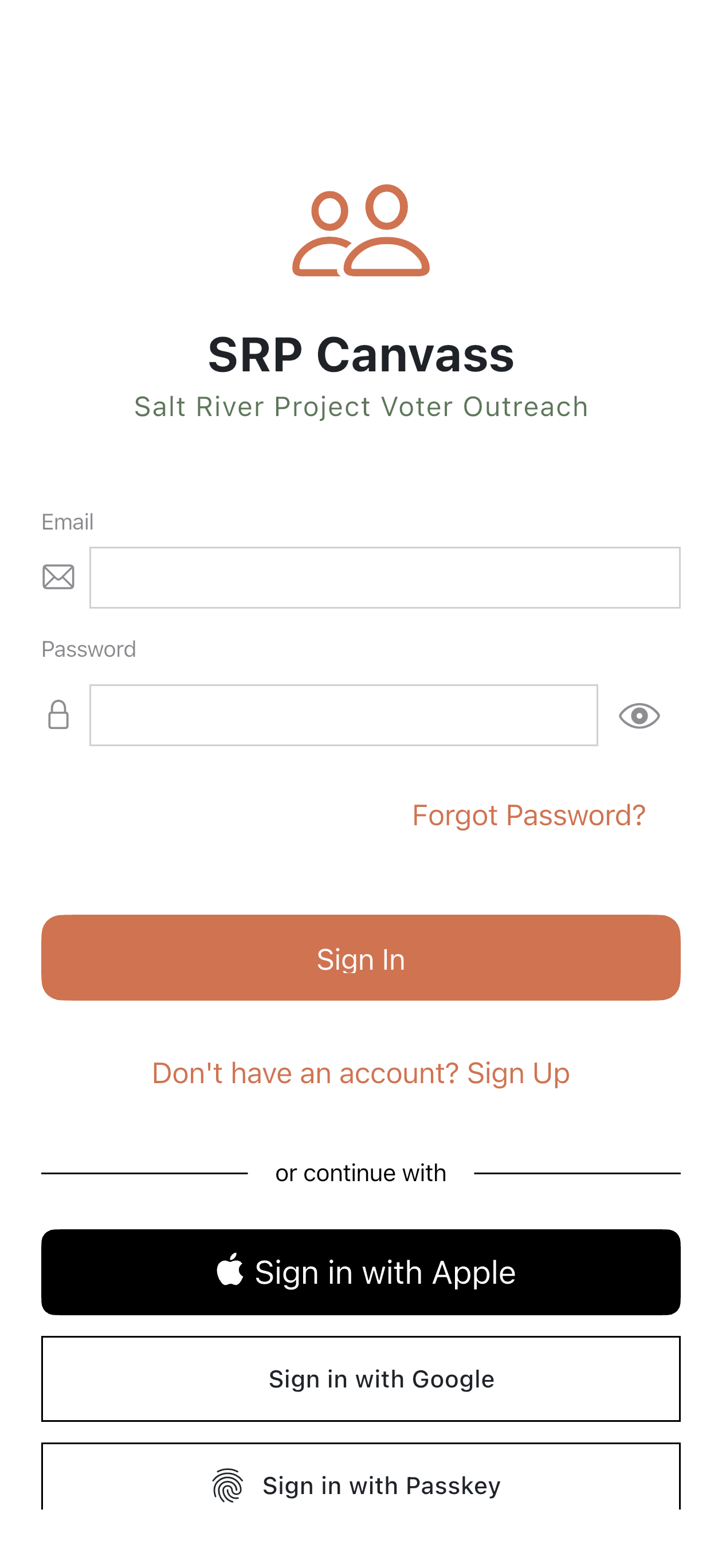
- Download the app from energyfreedom.team/app
- Tap “Don’t have an account? Sign Up” to create a new account
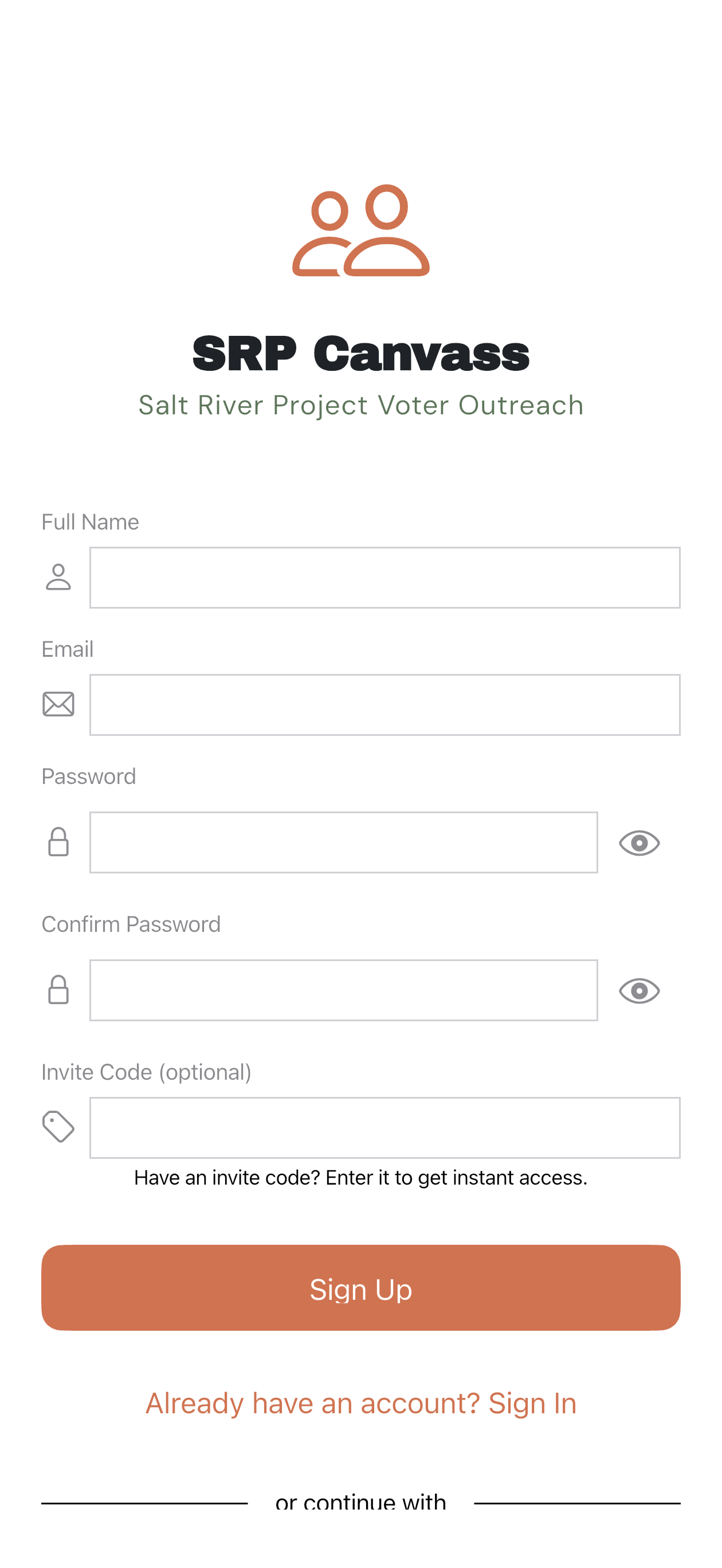
- Create an account using email, Google, or Apple Sign-In
- Wait for admin approval (typically within 24 hours)
- You’ll receive a push notification when approved
Understanding Your Role
Section titled “Understanding Your Role”| Role | What You Can Do |
|---|---|
| Canvasser | View assigned voters, record results, use neighborhood mode |
| Team Lead | All canvasser abilities + view all voters + progress reports |
| Admin | Full access including user management and turfs |
Part 2: Mobile App Training
Section titled “Part 2: Mobile App Training”The Voters Tab
Section titled “The Voters Tab”Your primary workspace for viewing and managing voters.
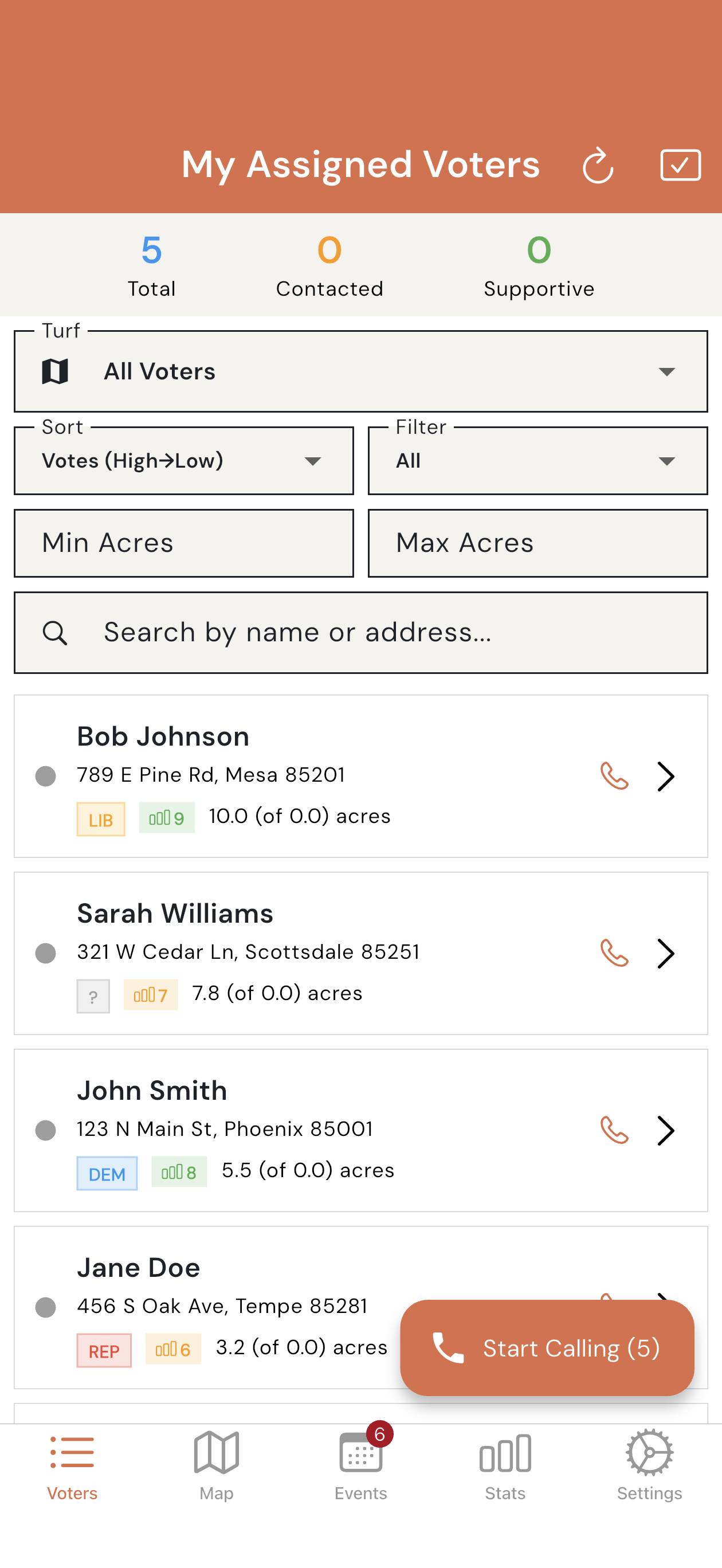
- List View - Scroll through voters alphabetically
- Map View - See voters geographically
- Search - Find voters by name or address
- Filters - Narrow by party, contact status, etc.
Searching for Voters
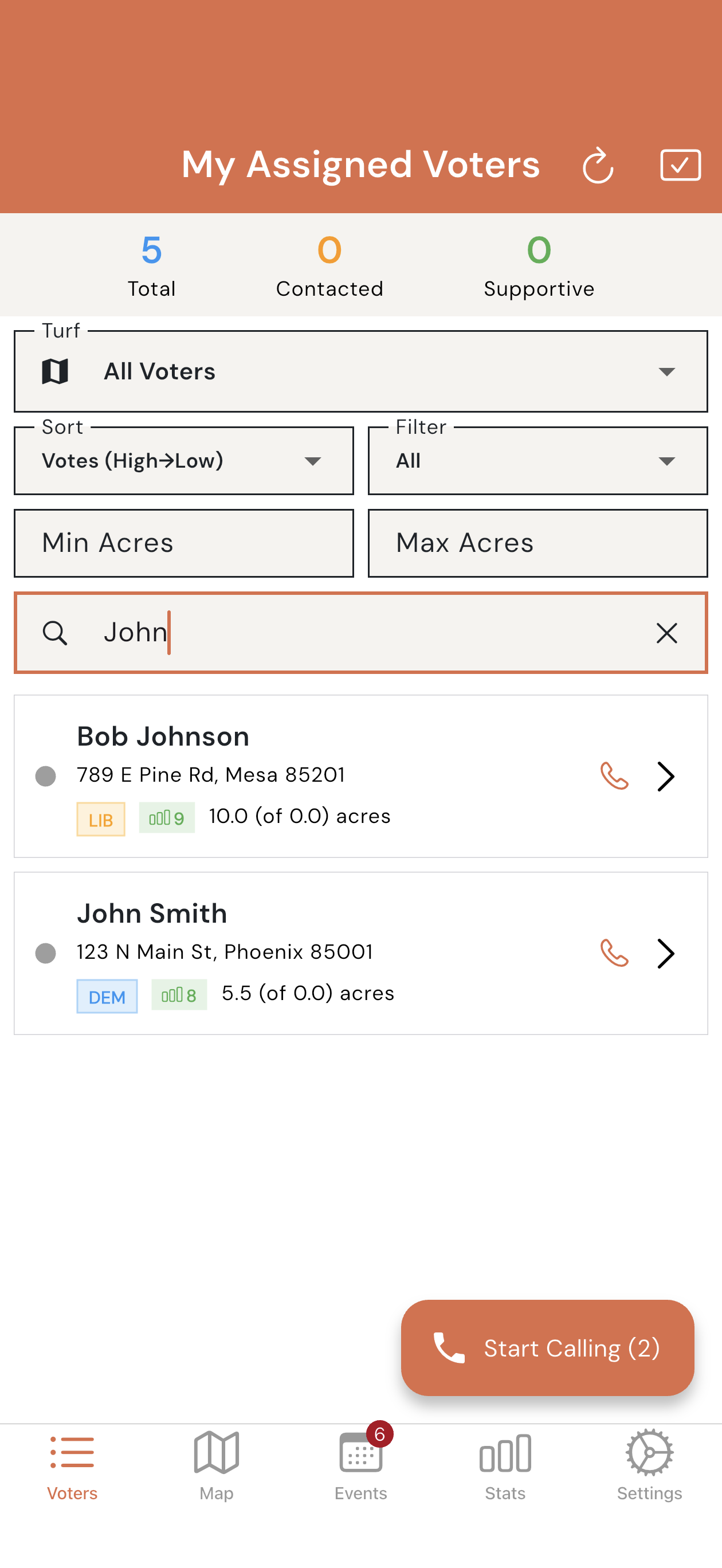
Section titled “Searching for Voters”Tap the search bar at the top to find voters by name or address.
Sorting & Filtering
Section titled “Sorting & Filtering”Use the sort and filter dropdowns to organize your list.
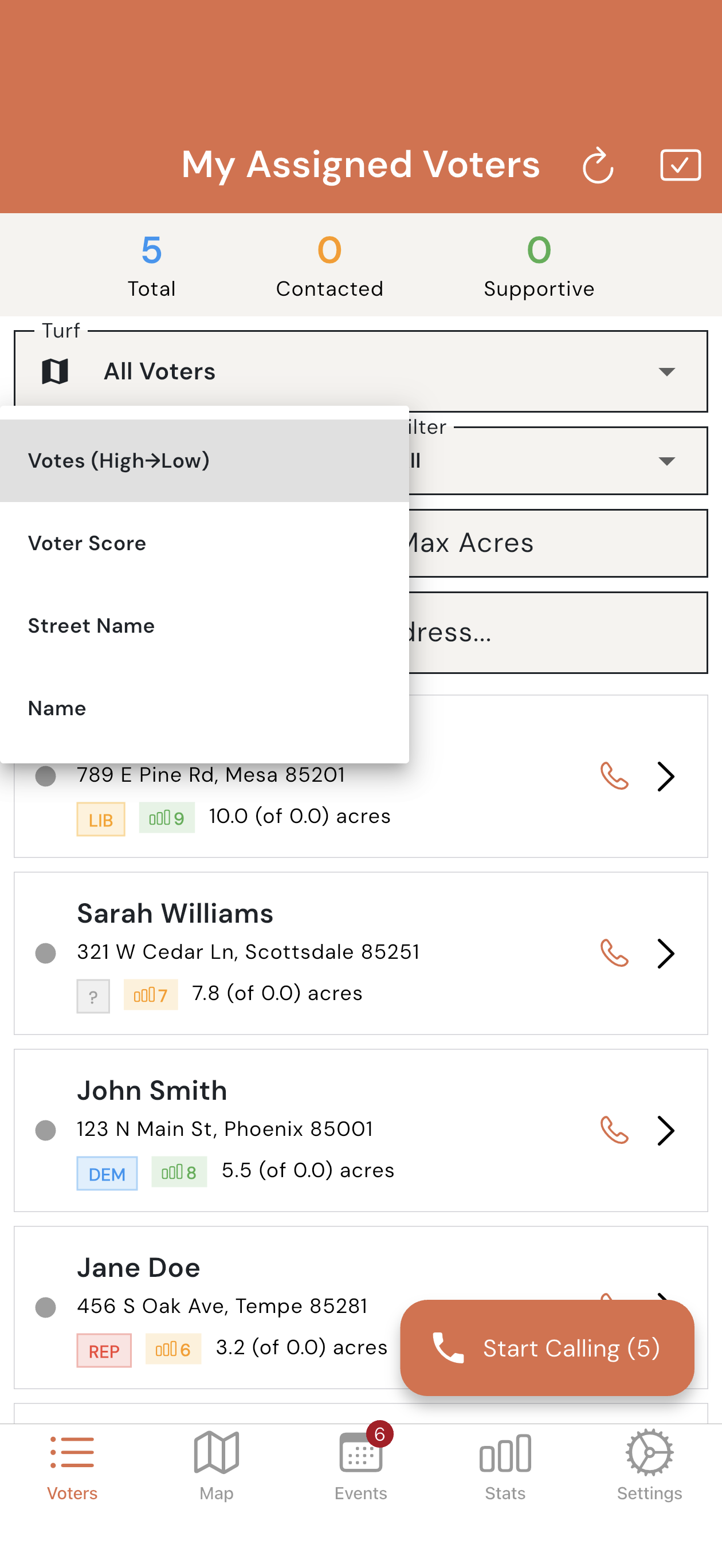
Sort options:
- Votes (High→Low) - Prioritize high-value voters
- Name - Alphabetical order
- Street - Group by address
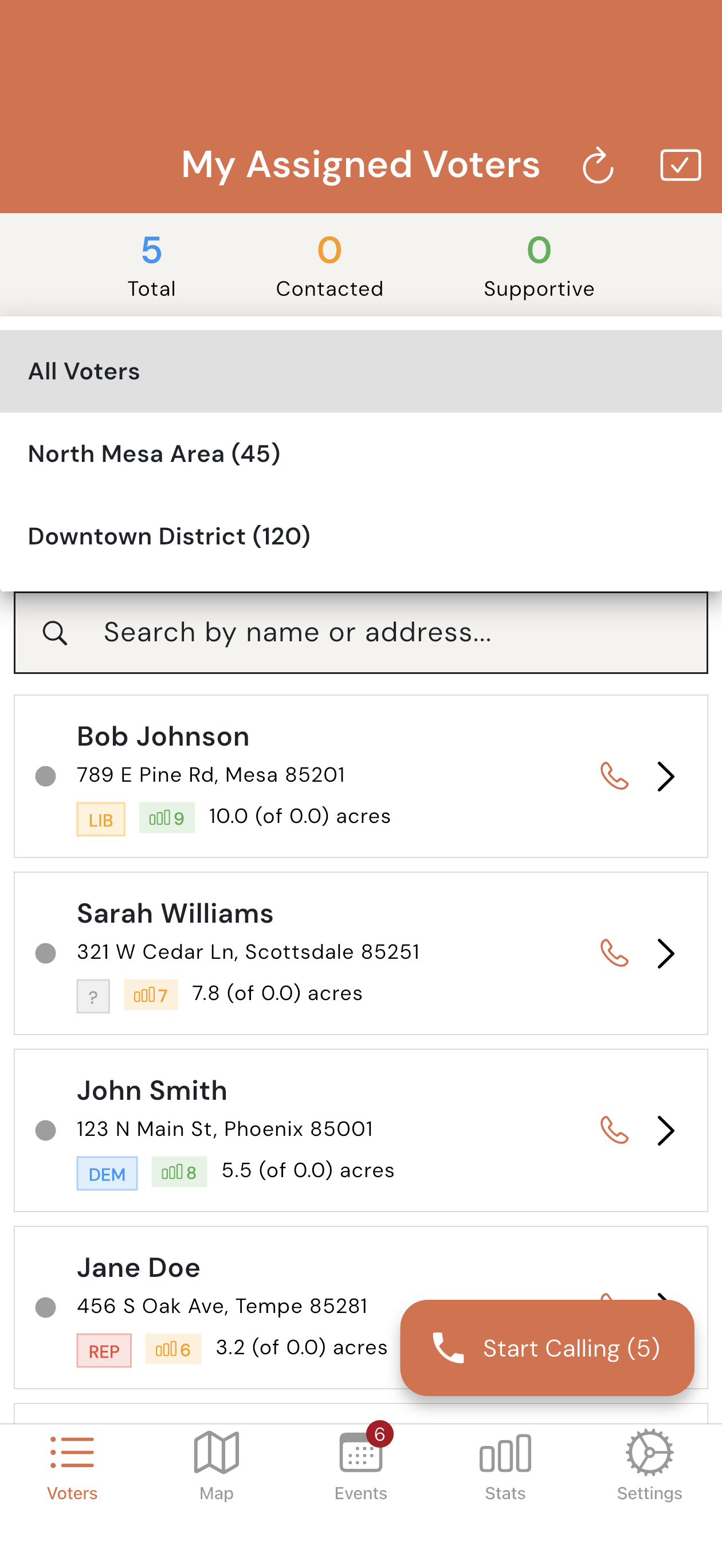
Filter options:
- All Voters - Show everyone
- Not Contacted - Focus on untouched voters
- Positive/Negative - Show by result
Map View
Section titled “Map View”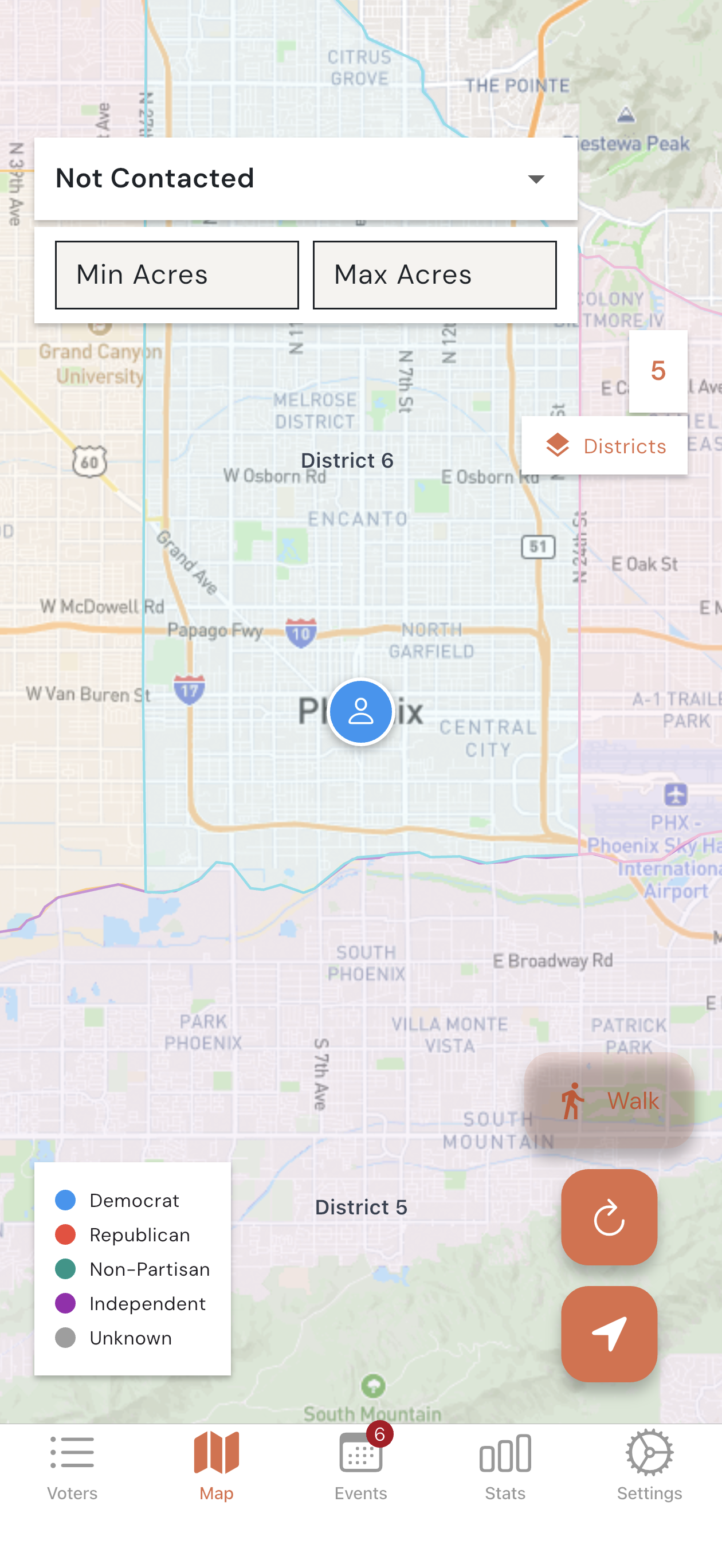
The map shows voters as pins color-coded by contact status. Tap any pin to see voter details.
Neighborhood Mode
Section titled “Neighborhood Mode”Perfect for walk-up canvassing. The app tracks your location and alerts you when near a voter.
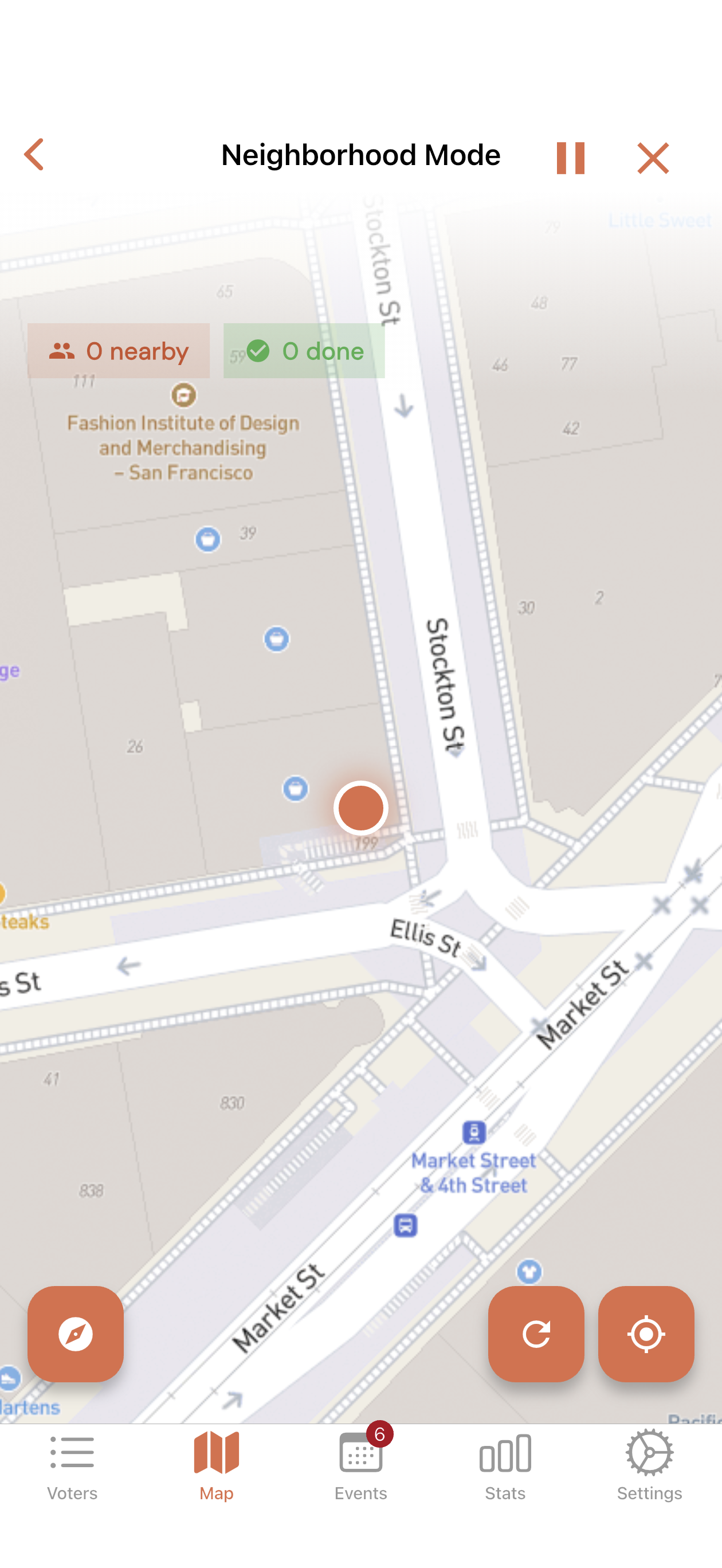
- Tap Walk on the map screen
- Walk through any neighborhood
- Get automatic alerts when near a voter (within 40 meters)
- Use quick action buttons: Support, Oppose, or Not Home
Learn more about Neighborhood Mode →
Recording Contact Results
Section titled “Recording Contact Results”When you contact a voter:
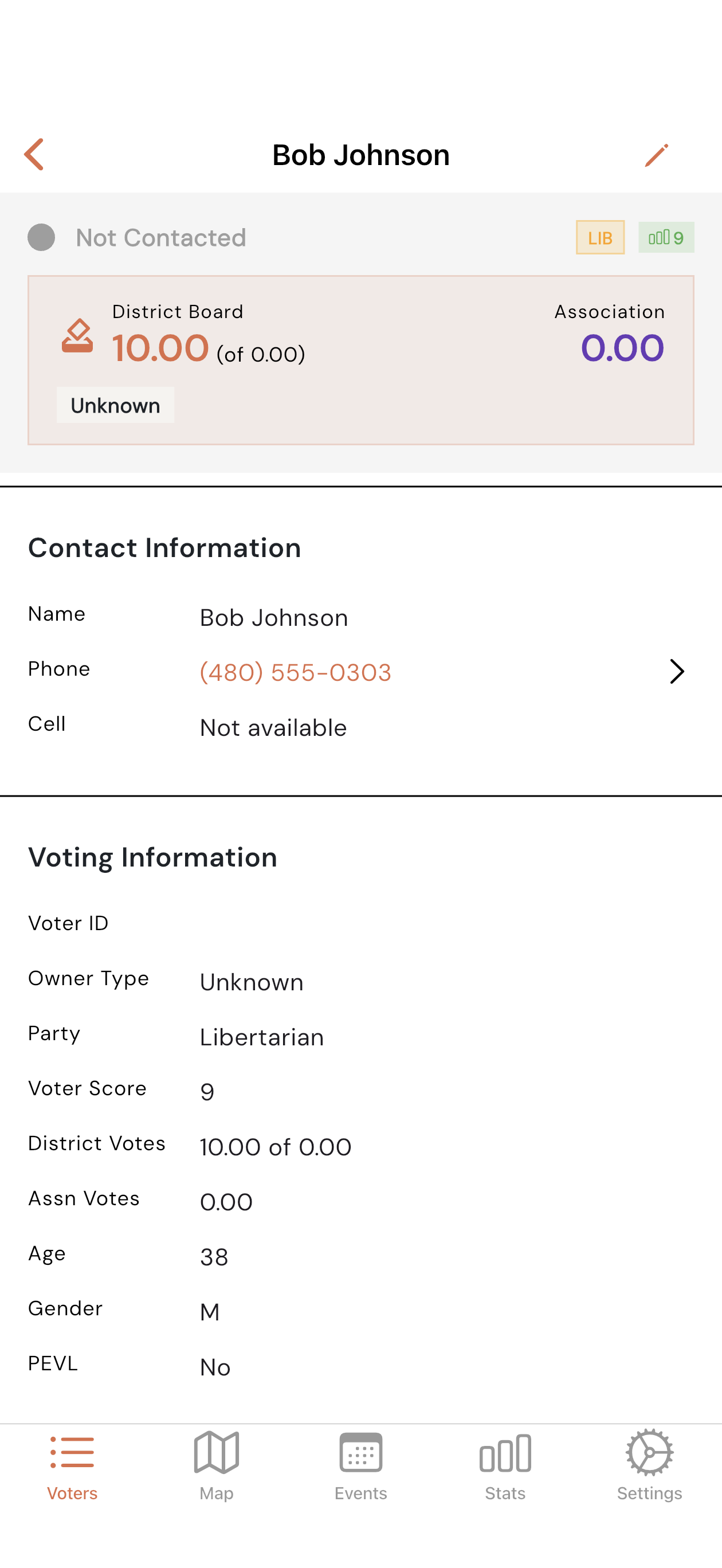
- Tap on their name to open details
- View contact info, property details, and voting history
- Use the phone icon to call (with scripts) or message icon to text (with templates)
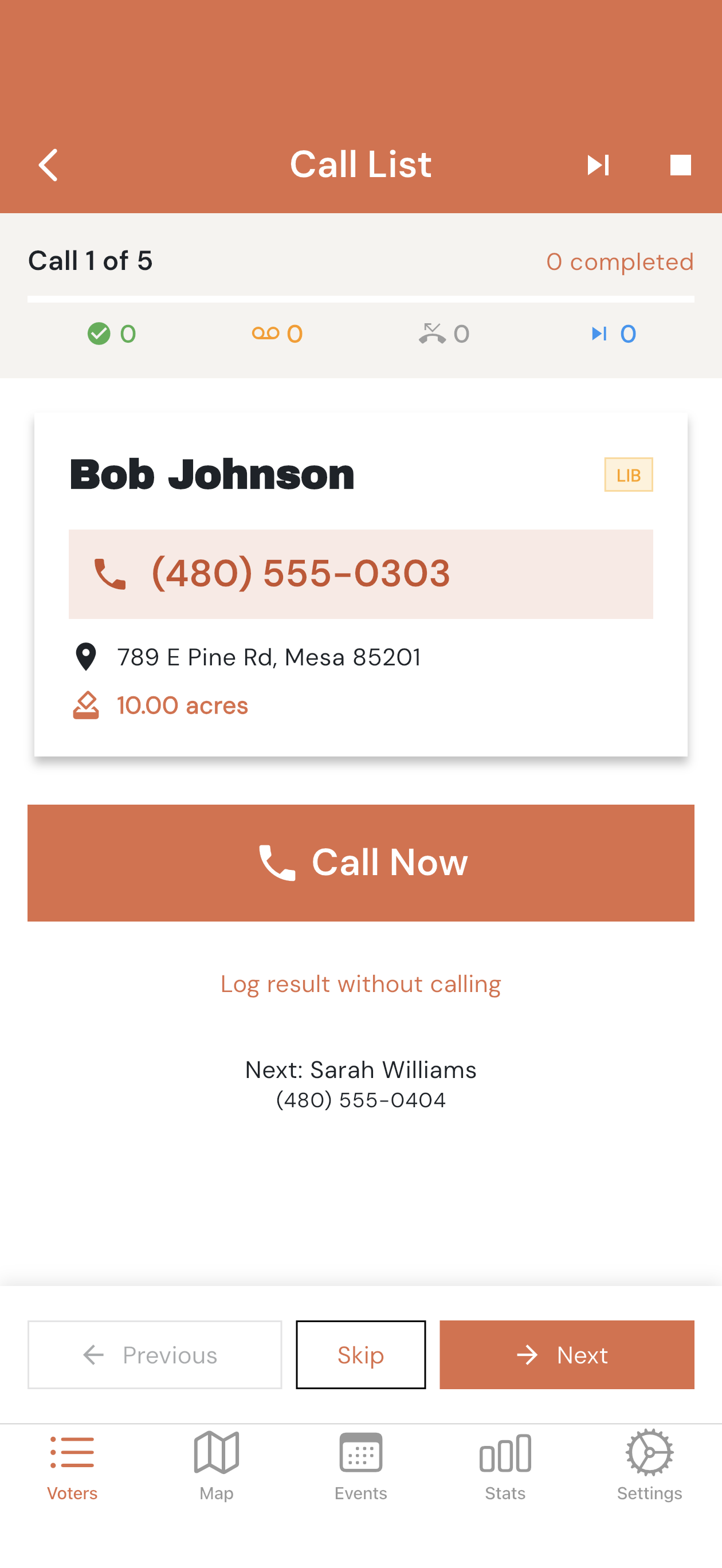
- Tap the result dropdown to record your contact
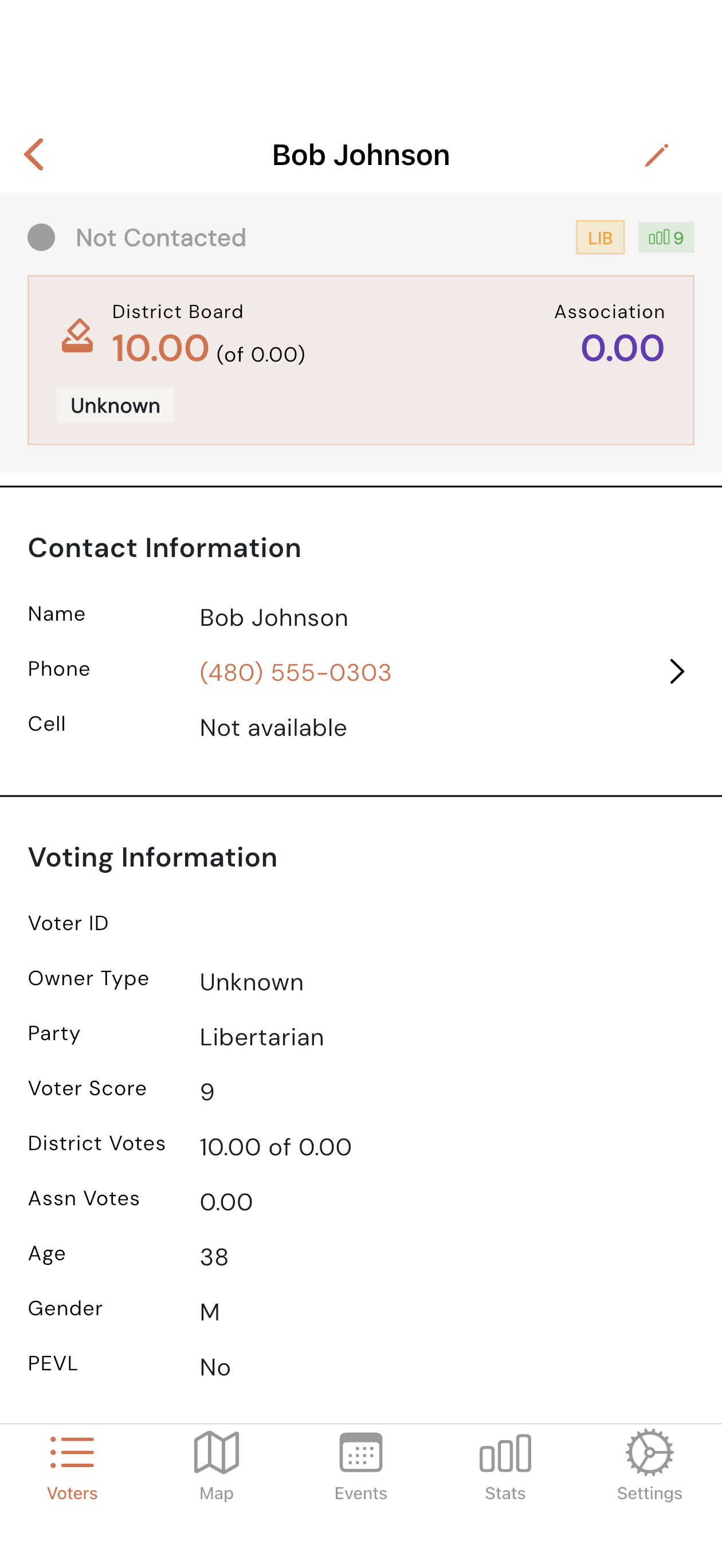
| Category | Results |
|---|---|
| Positive | Supportive, Strong Support, Leaning, Volunteer, Sign Request |
| Neutral | Undecided, Needs Info, Callback |
| Negative | Opposed, Strongly Opposed, Do Not Contact |
| Not Home | Not Home, Wrong Address, Moved |
- Add optional notes about the conversation
- Save
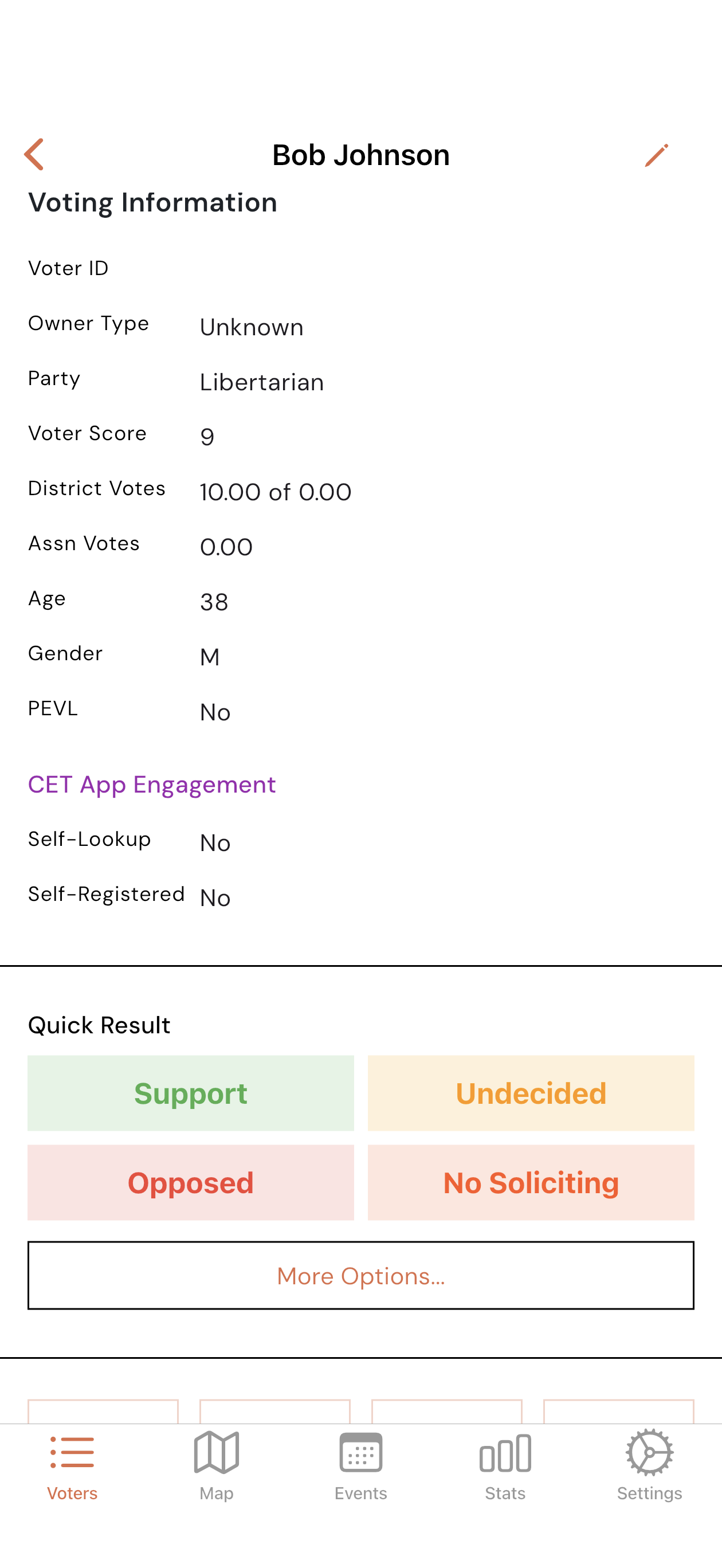
Voter Detail - More Info
Section titled “Voter Detail - More Info”Scroll down on the voter detail screen to see additional information.
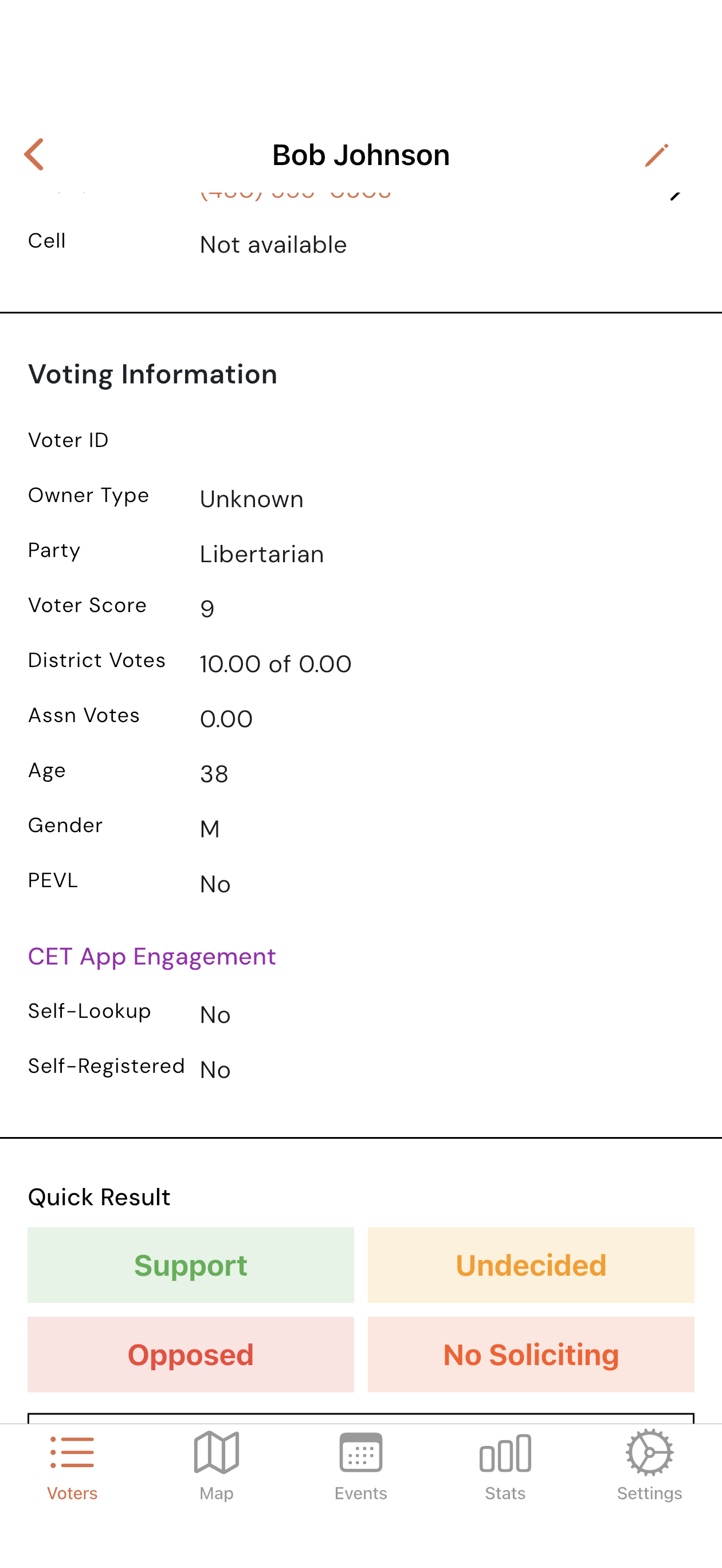
Contact History
Section titled “Contact History”View previous contact attempts with this voter.
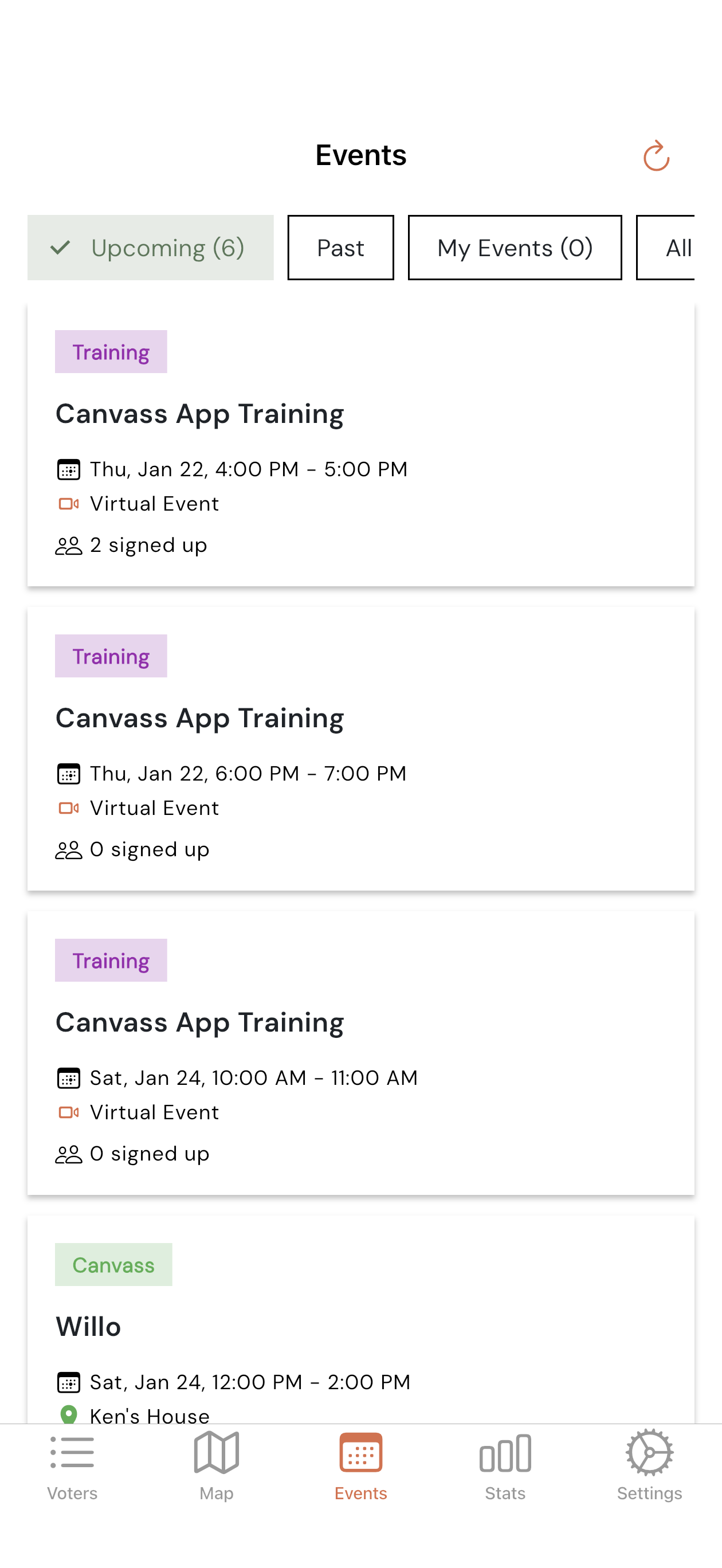
Events
Section titled “Events”View and sign up for campaign events.
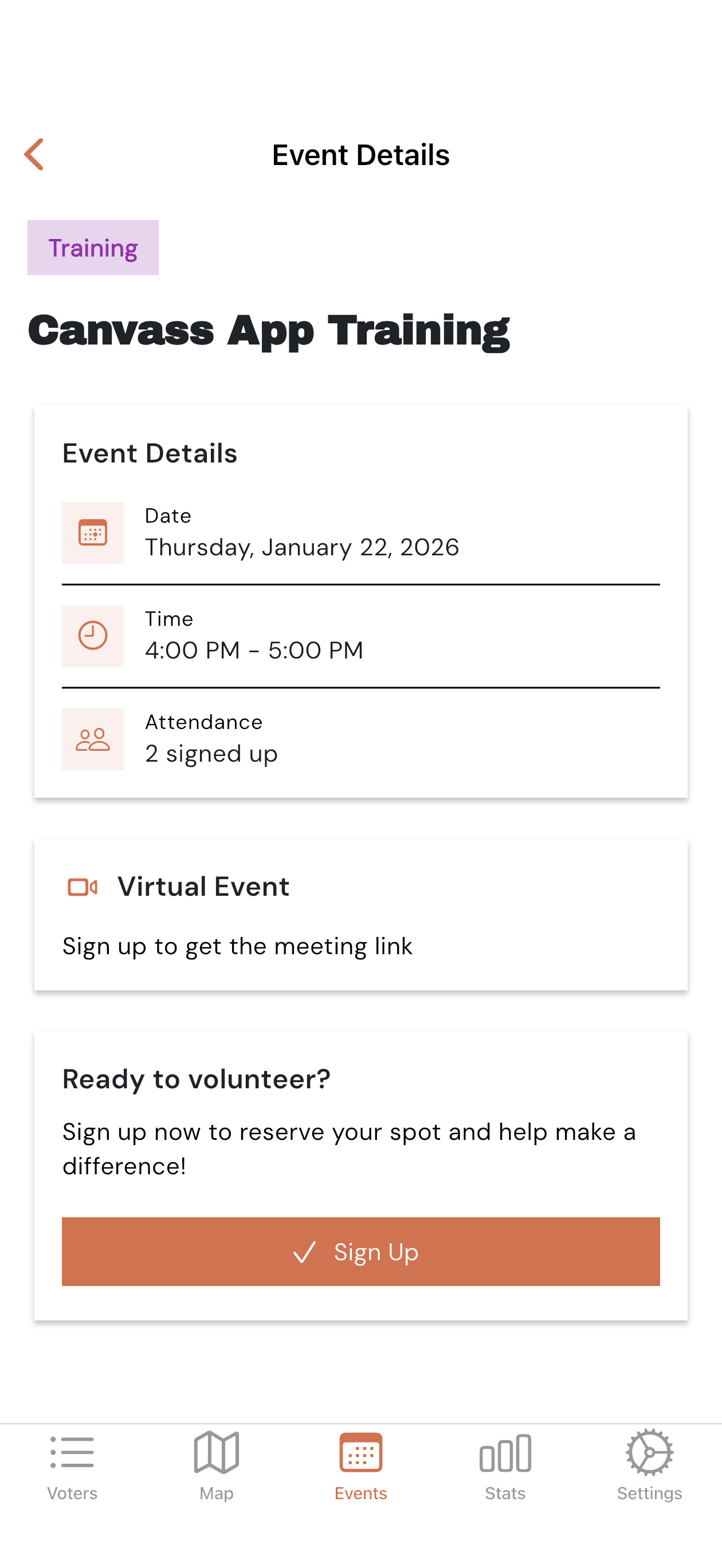
Tap any event to see details and sign up.
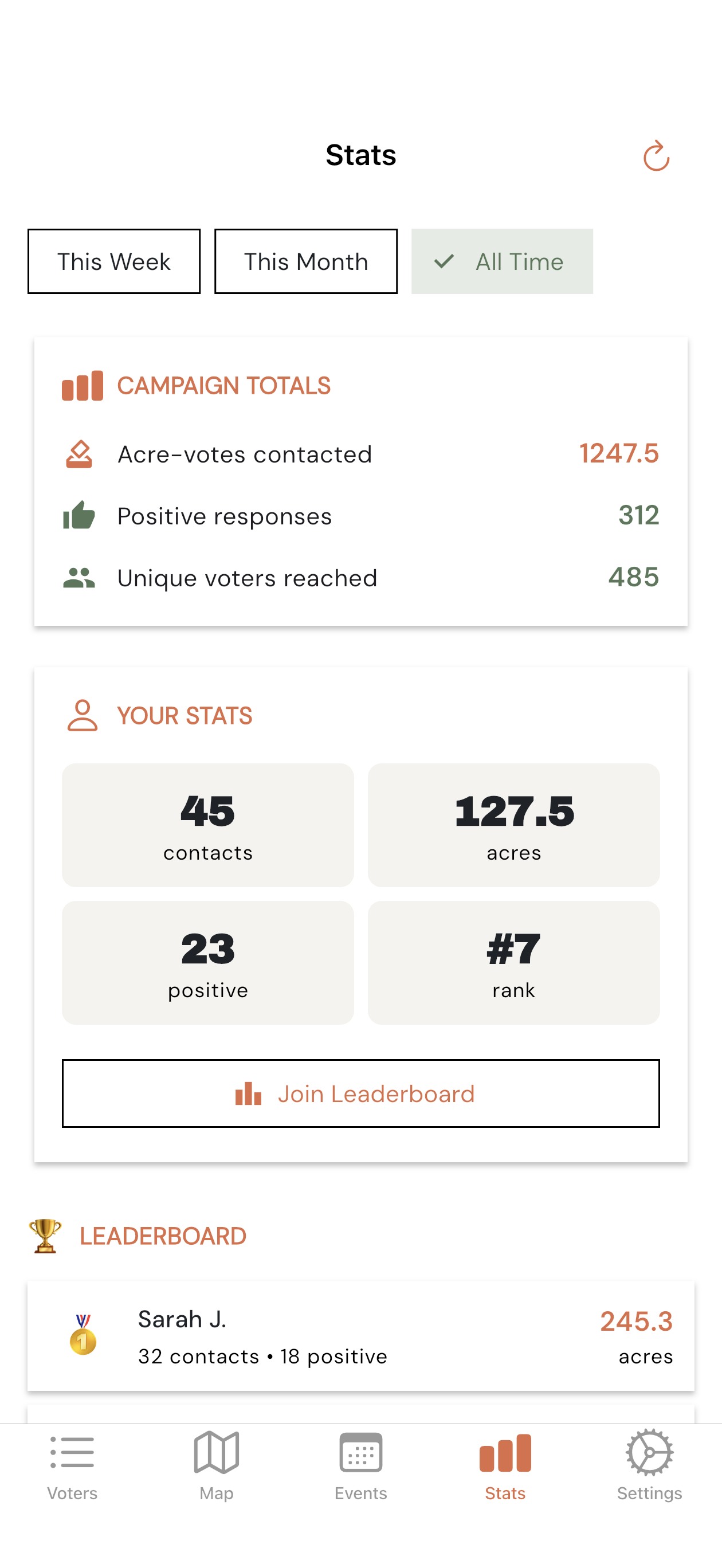
Track your progress and team performance.
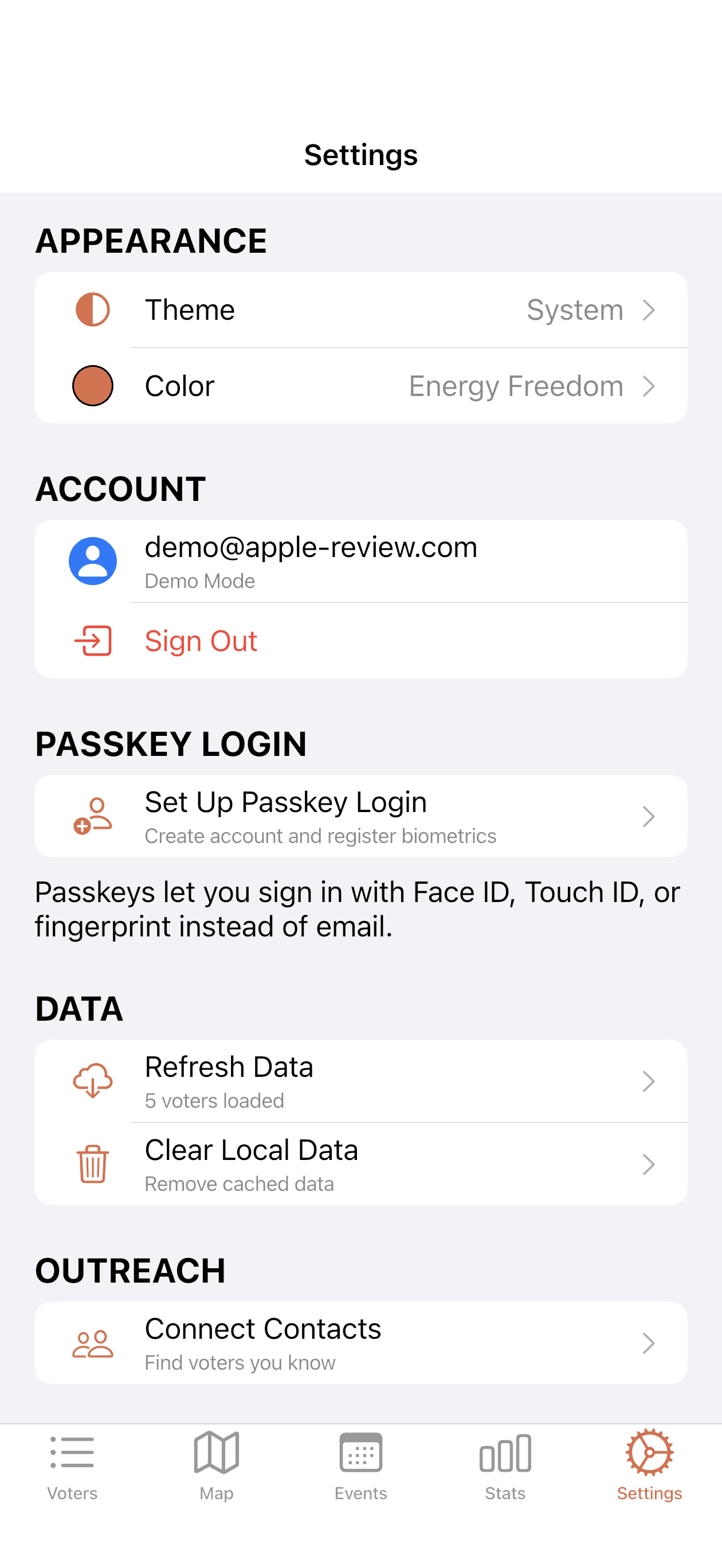
Settings
Section titled “Settings”Customize the app and manage your account.
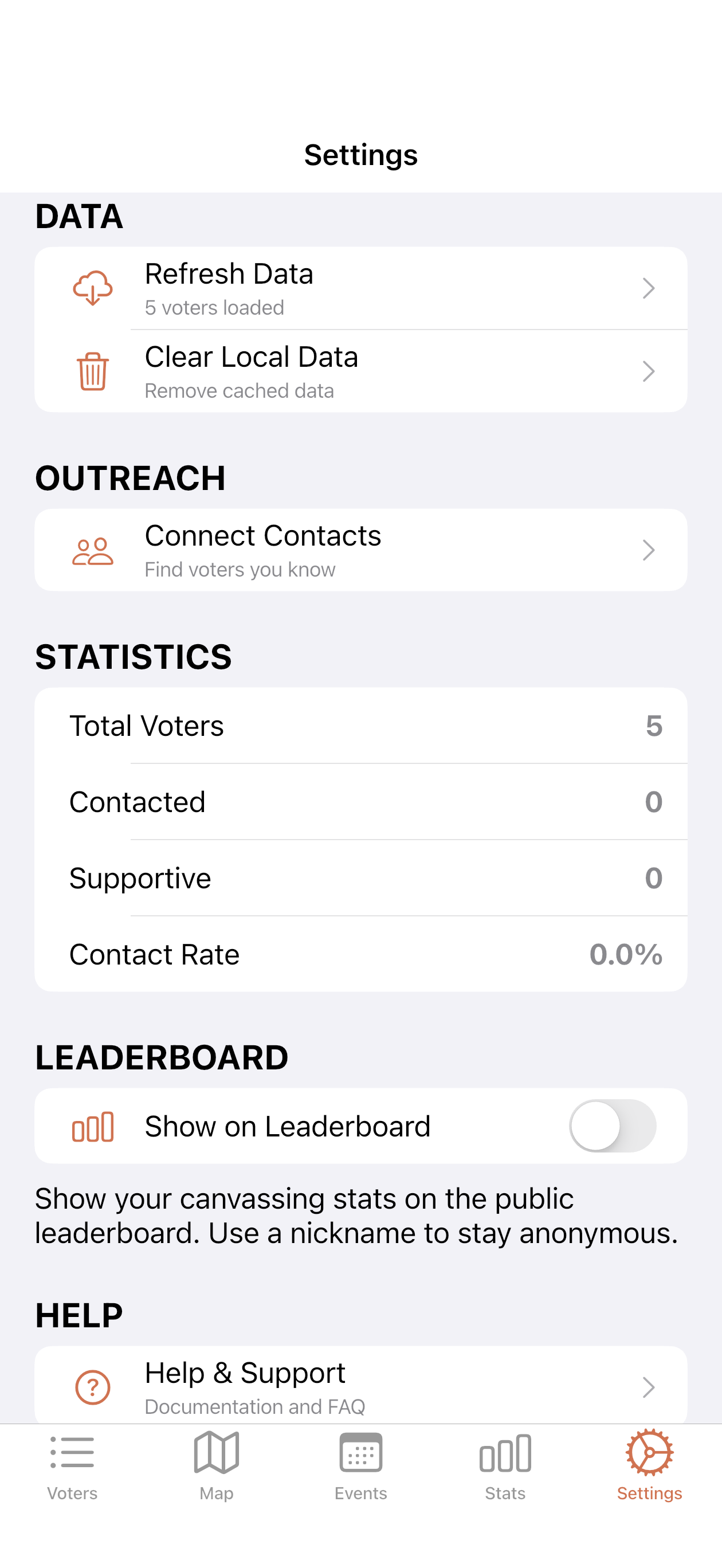
Scroll down for more options including data refresh and logout.
Part 3: Admin Dashboard Training
Section titled “Part 3: Admin Dashboard Training”Approving Users
Section titled “Approving Users”- Go to Team → Pending
- Review each pending user
- Click to approve or reject
Creating Turfs
Section titled “Creating Turfs”- Go to Turfs → New
- Draw a polygon on the map
- Apply optional filters (party, contact status, etc.)
- Save and assign to canvassers
Viewing Progress
Section titled “Viewing Progress”The Analytics section shows:
- Total voters contacted
- Support rates over time
- Team member activity
- Geographic heatmaps
Quick Reference Card
Section titled “Quick Reference Card”Mobile App Shortcuts
Section titled “Mobile App Shortcuts”| Action | How To |
|---|---|
| Refresh voters | Pull down on the list |
| Open map | Tap the Map tab |
| Search | Tap the search bar |
| Filter | Tap the dropdown menus |
| Record result | Tap voter → Select result |
| Start neighborhood mode | Tap Walk on map |
Result Colors
Section titled “Result Colors”- 🟢 Green - Supportive (good!)
- 🟡 Yellow - Undecided (follow up)
- 🔴 Red - Opposed
- ⚪ Gray - Not contacted yet
Getting Help
Section titled “Getting Help”- In-app help - Settings → Help
- This documentation - docs.energyfreedom.team
- Email support - Contact your team lead
Ready to start? Download the app →