
Voters
Overview
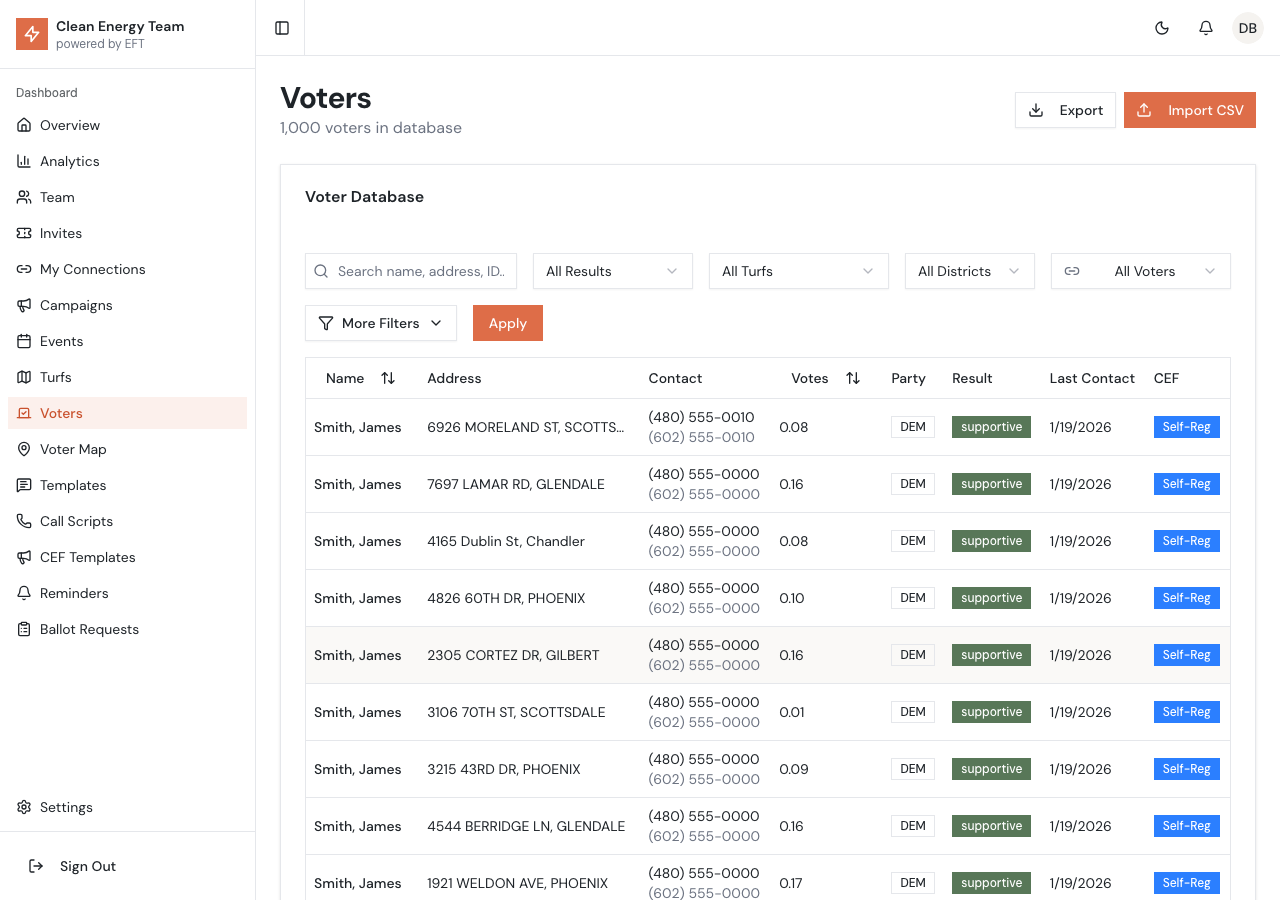
Section titled “Overview”The Voters page is the central hub for managing voter data. It provides powerful search and filtering capabilities, along with tools for importing and exporting voter information.
Voter List
Section titled “Voter List”The main view displays a paginated table of all voters in your database. Each row shows:
- Name - First and last name (or owner name if no individual name)
- Address - Property address
- Phone - Primary and cell phone numbers
- District - SRP district number (1-10)
- Party - Political party affiliation
- Votes - Voting weight (acres)
- Status - Current canvass result
Searching and Filtering
Section titled “Searching and Filtering”Quick Search
Section titled “Quick Search”Use the search box to find voters by:
- Name (first, last, or owner name)
- Address (street number or name)
- Phone number
Advanced Filters
Section titled “Advanced Filters”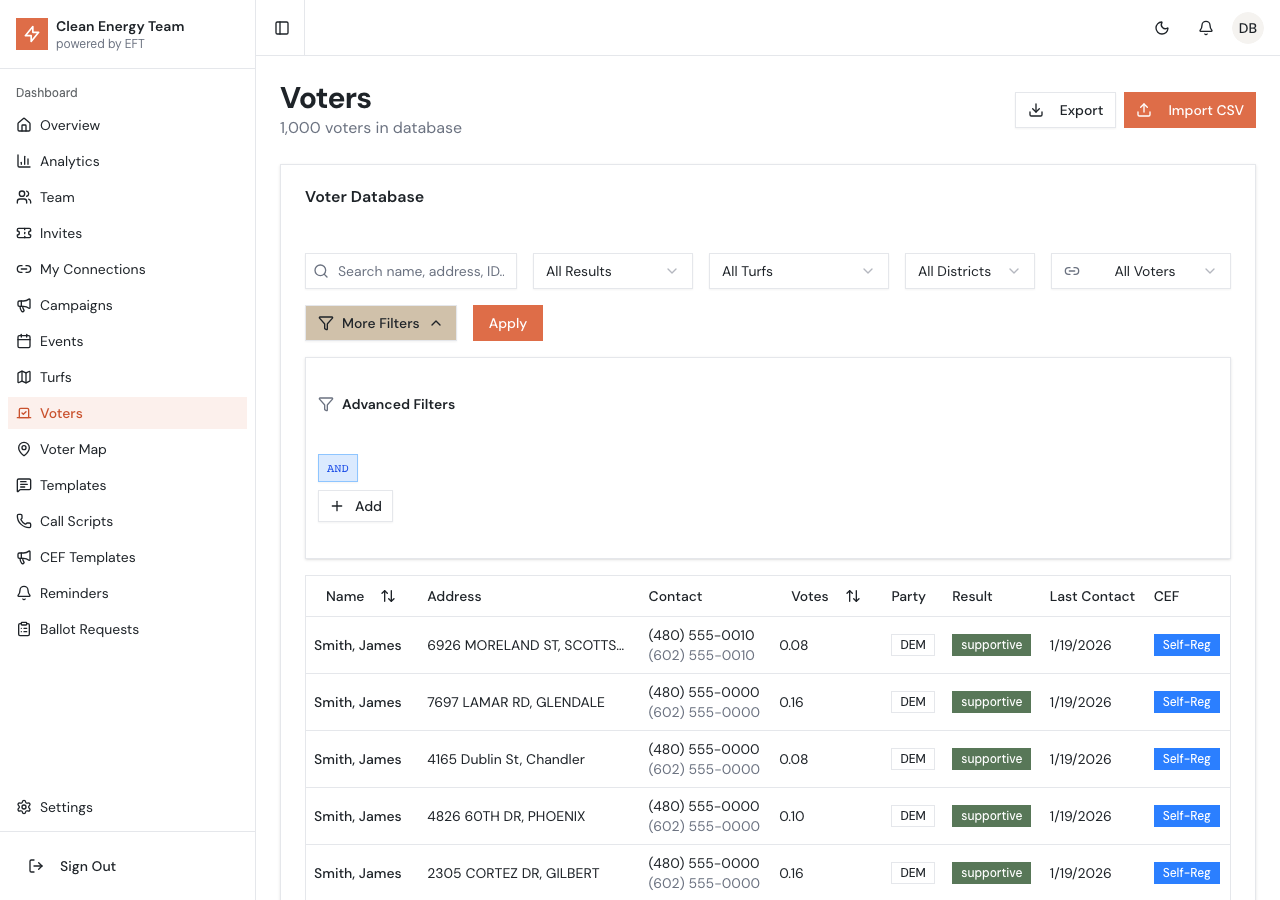
Click the Filters button to access:
| Filter | Options |
|---|---|
| District | Filter by SRP district (1-10) |
| Party | Democratic, Republican, Independent, Other |
| Contact Status | Not contacted, Contacted, Supportive, Opposed, Undecided |
| Turf | Filter by assigned turf |
| Has Solar | Filter properties with detected solar panels |
| Owner Type | Owners only, Trustees only, or All |
| PEVL Status | On Permanent Early Voter List only |
Query Builder
Section titled “Query Builder”For complex filters, use the visual query builder:
- Click Query Builder to open the visual editor
- Add conditions with field, operator, and value
- Combine with AND/OR logic
- Nest groups for advanced queries
Example: Find undecided Democrats with 5+ votes:
Party = Democrat AND Contact Status = Undecided AND Votes > 5Voter Detail Page
Section titled “Voter Detail Page”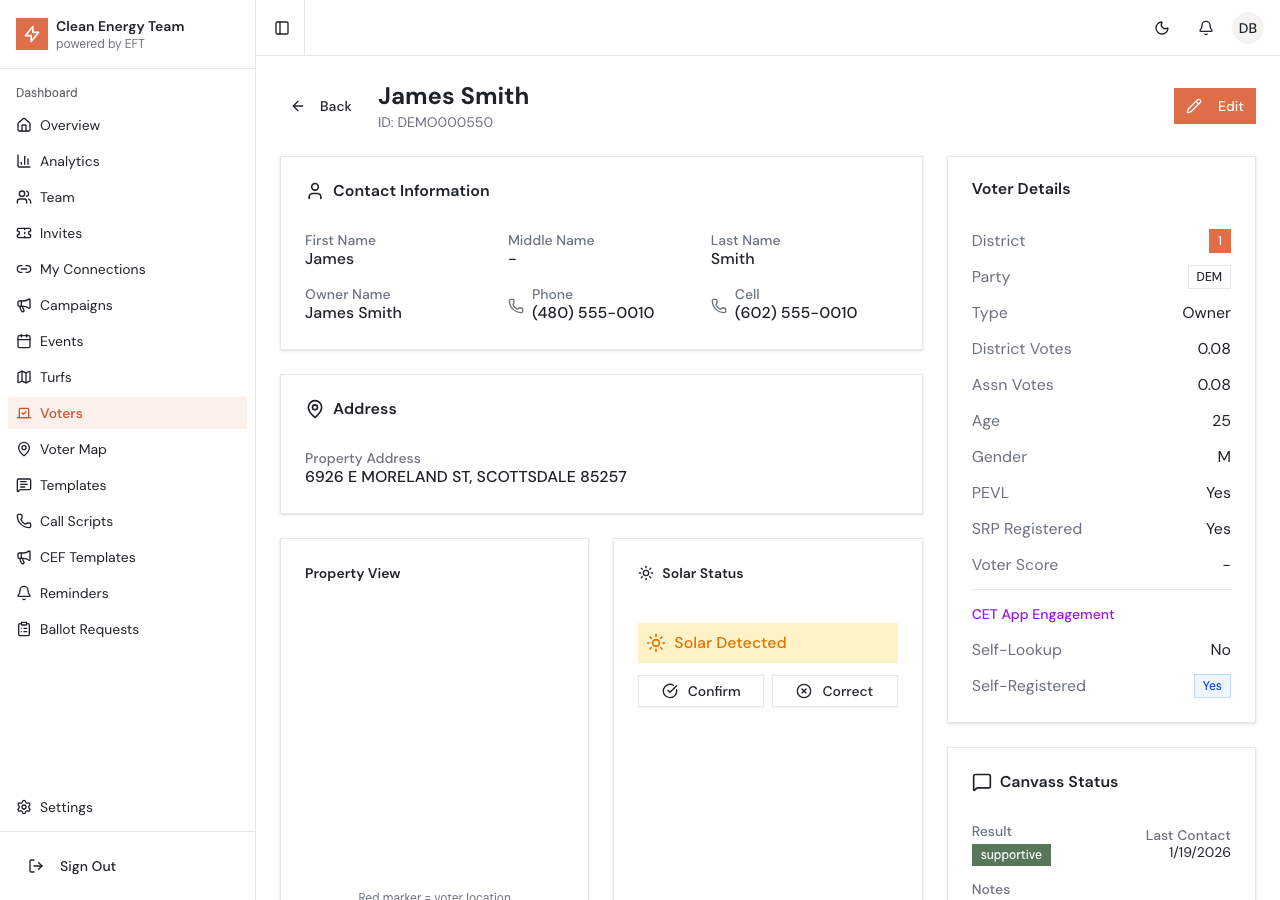
Click any voter row to open their detail page, which includes:
Contact Information
Section titled “Contact Information”- Full name and owner name
- Phone numbers (home and cell)
- Email address (if available)
Addresses
Section titled “Addresses”- Property Address - Where the property is located
- Mailing Address - Where mail is sent (may differ)
- Lives Elsewhere indicator if voter doesn’t reside at property
Voter Details
Section titled “Voter Details”- District number and party affiliation
- Owner type (Owner vs Trustee)
- District and Association votes
- Age, gender, and voter score
- PEVL and SRP registration status
Canvass Status
Section titled “Canvass Status”- Current canvass result
- Last contact date
- Canvass notes
Property View
Section titled “Property View”Satellite image of the property (when available) showing property boundaries.
Solar Status
Section titled “Solar Status”For properties scanned by our solar detection system:
- Solar Detected - Solar panels found on roof
- No Solar - No panels detected
- Not Scanned - Property not yet analyzed
Admins can verify or correct solar detection results.
Editing a Voter
Section titled “Editing a Voter”- Click the Edit button in the header
- Modify fields as needed
- Click Save to update
Editable fields include:
- Name (first, middle, last)
- Phone numbers
- Addresses (residence and mailing)
- Canvass result and notes
Contact History
Section titled “Contact History”The bottom of the voter detail page shows a complete history of all contacts:
- Date - When contact was made
- Result - Outcome of the contact
- Method - Phone, Text, Door, or Neighborhood Mode
- Notes - Any notes from the conversation
Connections
Section titled “Connections”If volunteers have synced their phone contacts, matching connections are shown:
Personal Connections (SRP Canvass App)
Section titled “Personal Connections (SRP Canvass App)”Shows volunteers who have this voter’s phone number in their contacts:
- Volunteer name and email
- Contact name (how saved in their phone)
- Confidence level (High/Medium/Low)
- Assignment status
Clean Energy Friends Connections
Section titled “Clean Energy Friends Connections”Shows CEF app users who have this voter in their contacts.
Household Members
Section titled “Household Members”If multiple voters share the same address, they appear in the “Other Voters at This Address” section with links to view each.
Importing Voters
Section titled “Importing Voters”See Data Import/Export for detailed import instructions.
- Click Import CSV in the top right
- Download the template to see required format
- Prepare your CSV file
- Upload and map columns
- Review and confirm import
Exporting Voters
Section titled “Exporting Voters”- Click Export in the top right
- Choose export type:
- All voters
- Current filter results
- Specific turf
- Select fields to include
- Download CSV file
Voter Map View
Section titled “Voter Map View”Click the map icon to switch to map view, showing voters geographically:
- Color-coded markers by canvass result
- Cluster view for dense areas
- Click markers to see voter details
- Filter controls apply to map view
Best Practices
Section titled “Best Practices”Data Quality
Section titled “Data Quality”- Keep phone numbers updated
- Mark moved/deceased voters promptly
- Add notes for future reference
- Verify solar detection when viewing property images
Privacy
Section titled “Privacy”- Only access voter data for campaign purposes
- Don’t export more data than needed
- Handle exports according to data policies