
SMS Templates
Overview
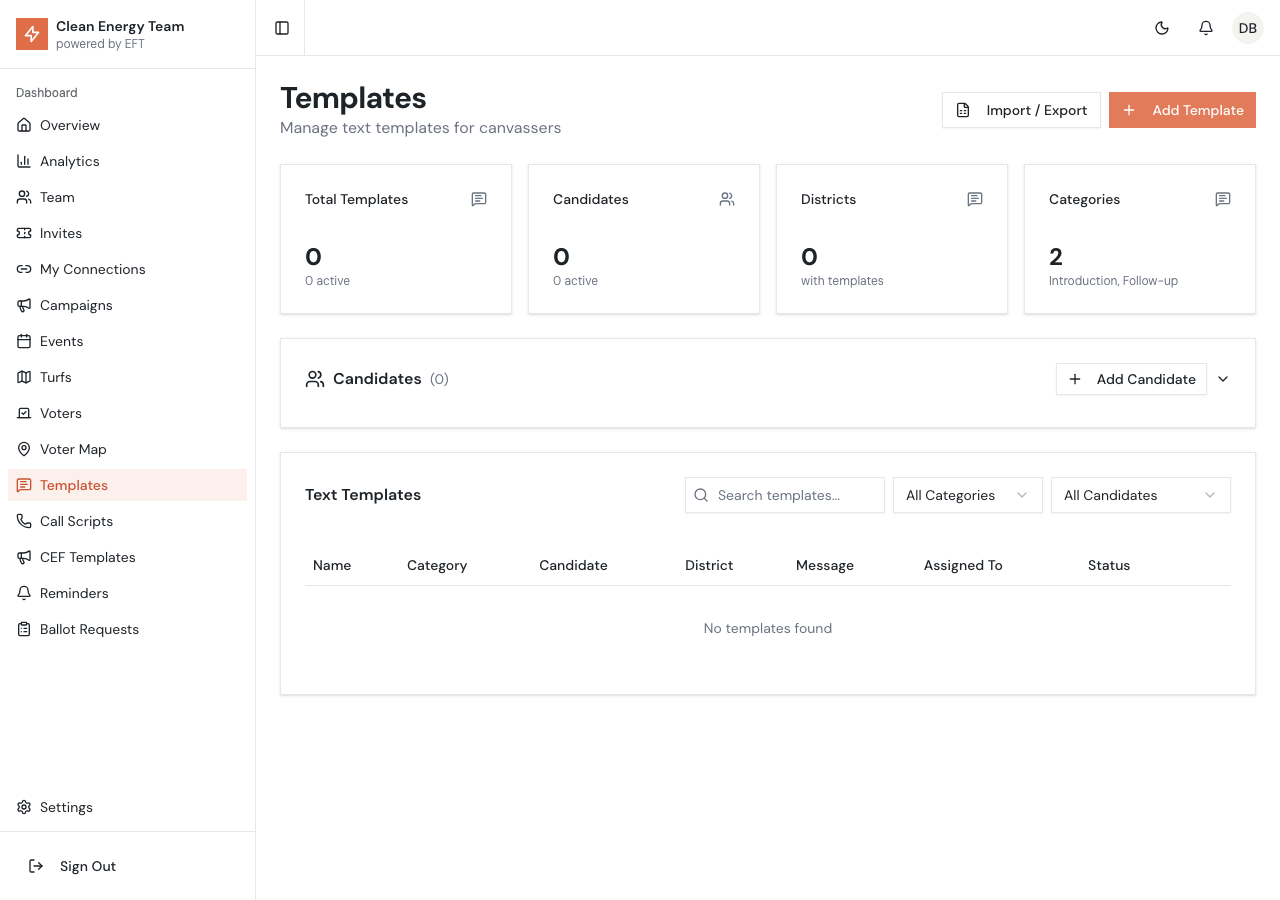
Section titled “Overview”The Templates page allows you to create and manage SMS text message templates that canvassers can use when reaching out to voters. Templates provide consistent messaging and save time for your canvassing team.
Accessing Templates
Section titled “Accessing Templates”Click Templates in the sidebar to view the templates management page.
Template Statistics
Section titled “Template Statistics”The top of the page displays:
| Stat | Description |
|---|---|
| Total Templates | Number of templates in the system |
| Candidates | Number of candidates configured |
| Districts | Districts with templates assigned |
| Categories | Template categories in use |
Template List
Section titled “Template List”The template table shows:
- Name - Template name for easy identification
- Category - Introduction, Follow-up, or other type
- Candidate - Which candidate this template is for
- Message Preview - Truncated template content
- Assignments - User/turf assignment count
- Status - Active or Inactive
Creating a Template
Section titled “Creating a Template”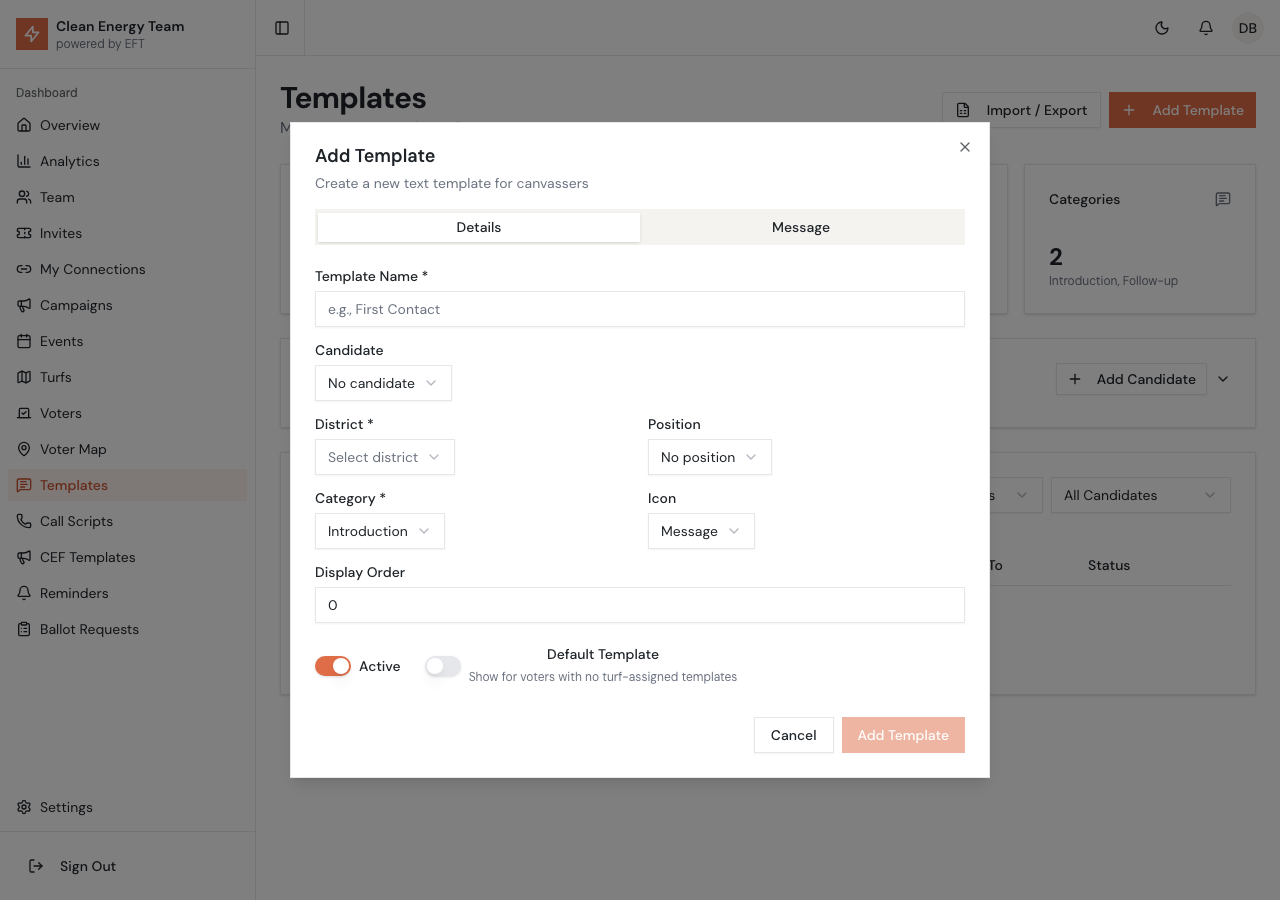
- Click Add Template
- Fill in the template details:
| Field | Description |
|---|---|
| Name | Short descriptive name |
| Category | Message type (Introduction, Follow-up) |
| Candidate | Associate with a specific candidate (optional) |
| Message | The template text with optional placeholders |
| Is Active | Whether template is available to use |
- Click Save
Template Categories
Section titled “Template Categories”Introduction
Section titled “Introduction”First contact messages for voters you haven’t reached before. These typically introduce the candidate and campaign.
Follow-up
Section titled “Follow-up”Messages for subsequent contacts. Used after initial outreach or for voters who requested more information.
Dynamic Placeholders
Section titled “Dynamic Placeholders”Use placeholders that auto-fill with voter information:
| Placeholder | Replaced With |
|---|---|
{firstName} | Voter’s first name |
{lastName} | Voter’s last name |
{fullName} | Full name |
{city} | Voter’s city |
{candidate} | Candidate name (based on voter’s district) |
Example Template
Section titled “Example Template”Hi {firstName}! This is a volunteer with Energy Freedom Team.I wanted to tell you about {candidate}, who's running for SRPBoard in your district. Can I share some information?Candidate Management
Section titled “Candidate Management”Viewing Candidates
Section titled “Viewing Candidates”Click the Candidates section (collapsible) to view and manage candidates:
- Candidate name
- District assignment
- Active status
- Associated templates count
Adding Candidates
Section titled “Adding Candidates”- Click Add Candidate in the Candidates section
- Enter candidate details:
- Name
- District (1-10)
- Is Active toggle
- Click Save
Candidate Placeholders
Section titled “Candidate Placeholders”When a template uses {candidate}, the system automatically inserts the correct candidate name based on which district the voter is in.
Template Assignments
Section titled “Template Assignments”Templates can be assigned to:
Specific Users
Section titled “Specific Users”Assign templates to individual canvassers for their exclusive use.
Assign templates to turfs so all canvassers with that turf see them.
All Users
Section titled “All Users”Don’t assign to anyone specific - template is available to everyone.
Managing Templates
Section titled “Managing Templates”Editing Templates
Section titled “Editing Templates”- Click the menu icon on the template row
- Select Edit
- Modify the template
- Click Save
Activating/Deactivating
Section titled “Activating/Deactivating”Toggle templates without deleting:
- Click the menu icon
- Select Activate or Deactivate
Deleting Templates
Section titled “Deleting Templates”- Click the menu icon
- Select Delete
- Confirm deletion
Import/Export
Section titled “Import/Export”Exporting Templates
Section titled “Exporting Templates”- Click Import / Export
- Select Export
- Choose format (CSV)
- Download file
Importing Templates
Section titled “Importing Templates”- Click Import / Export
- Select Import
- Upload your CSV file
- Map columns to fields
- Review and confirm
Filtering Templates
Section titled “Filtering Templates”Use the filter controls:
- Search - Find by name or content
- Category - Filter by message type
- Candidate - Filter by associated candidate
Best Practices
Section titled “Best Practices”Writing Effective Messages
Section titled “Writing Effective Messages”- Keep messages concise (SMS length limits apply)
- Use conversational, friendly tone
- Include a clear call to action
- Personalize with placeholders
Template Organization
Section titled “Template Organization”- Use clear, descriptive names
- Create distinct templates for different purposes
- Keep introduction and follow-up messages separate
- Deactivate outdated templates
Candidate-Specific Templates
Section titled “Candidate-Specific Templates”- Create templates mentioning each candidate
- Use the
{candidate}placeholder for automatic selection - Update when candidates change
Character Limits
Section titled “Character Limits”SMS messages have length limits:
- Standard SMS: 160 characters
- Extended SMS: Up to 1600 characters (sent as multiple segments)
The template editor shows character count to help you stay within limits.
Mobile App Usage
Section titled “Mobile App Usage”Canvassers see templates in the mobile app when:
- Opening a voter’s detail page
- Tapping the text/SMS button
- Selecting from available templates
- Placeholders auto-fill with voter data
- Sending via their phone’s messaging app
Differences from CEF Templates
Section titled “Differences from CEF Templates”| Feature | SMS Templates | CEF Templates |
|---|---|---|
| App | SRP Canvass | Clean Energy Friends |
| Users | Trained canvassers | Casual volunteers |
| Assignments | User/Turf based | District based |
| Candidates | Full candidate management | Simple placeholder |