
Settings
Overview
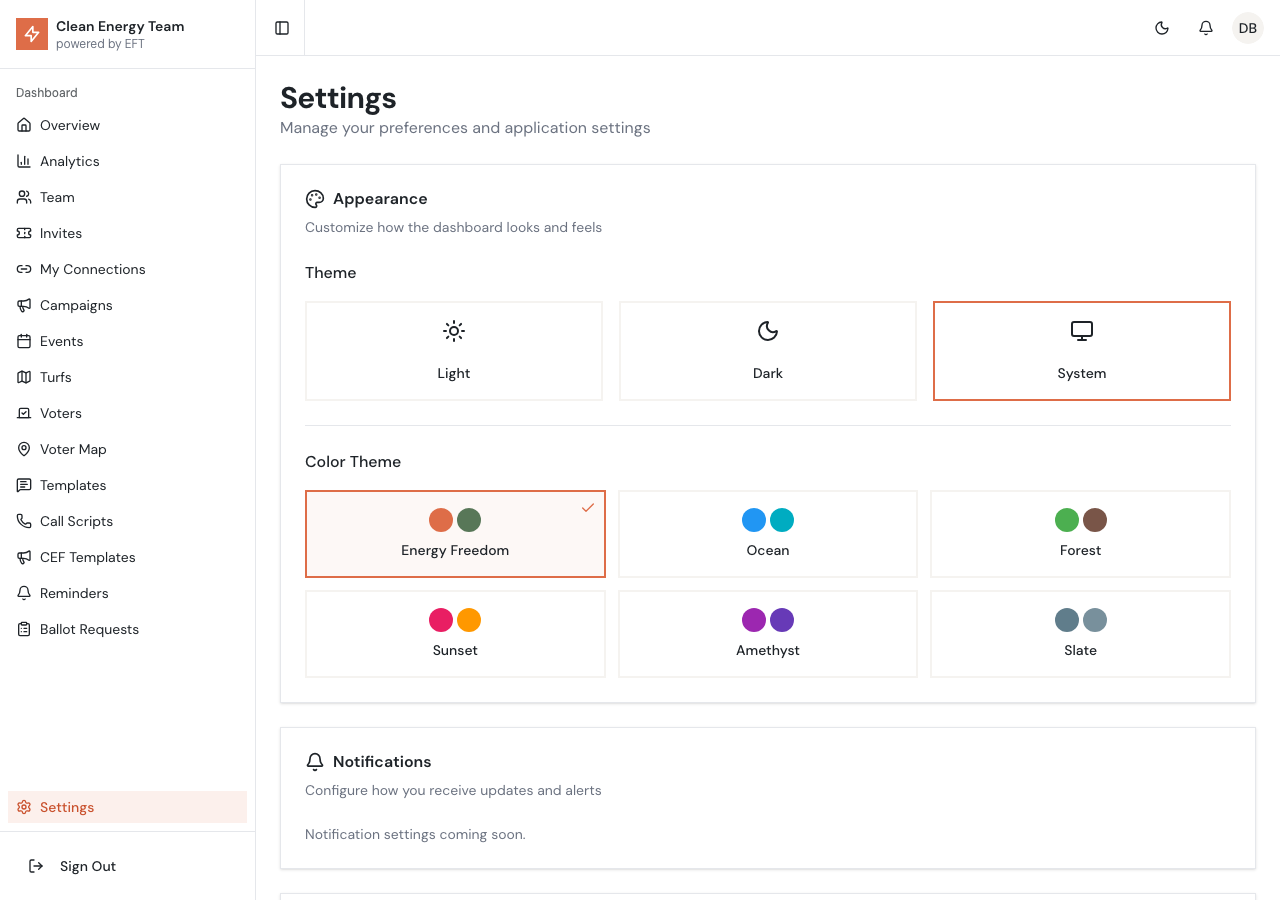
Section titled “Overview”The Settings page allows you to customize your admin dashboard experience, manage security settings, and control data preferences.
Appearance
Section titled “Appearance”Theme Mode
Section titled “Theme Mode”Choose how the dashboard displays:
| Option | Description |
|---|---|
| Light | Light background with dark text |
| Dark | Dark background with light text |
| System | Follows your operating system preference |
Click the theme cards to switch modes. The change takes effect immediately.
Color Theme
Section titled “Color Theme”Customize the accent colors used throughout the dashboard:
Available themes include different primary and secondary color combinations. Click a theme swatch to apply it.
Each theme shows:
- Primary color swatch
- Secondary color swatch
- Theme name
- Checkmark on currently selected theme
Notifications
Section titled “Notifications”Notification settings allow you to control how you receive updates and alerts.
Status: Coming Soon
Future notification options will include:
- Email notifications for new signups
- Daily activity summaries
- Campaign milestone alerts
Security
Section titled “Security”Change Password
Section titled “Change Password”Update your account password:
- Click Change Password
- Enter your new password (minimum 6 characters)
- Confirm the new password
- Click Update Password
Password requirements:
- Minimum 6 characters
- Recommended: Mix of letters, numbers, and symbols
Two-Factor Authentication
Section titled “Two-Factor Authentication”Add an extra layer of security with 2FA.
Status: Coming Soon
When available, 2FA will:
- Require a code from your phone when logging in
- Support authenticator apps
- Provide backup codes for recovery
Data Management
Section titled “Data Management”Export All Data
Section titled “Export All Data”Download a complete copy of your canvassing data.
Status: Coming Soon
When available, this will export:
- All voter records
- Contact history
- Team activity
- Campaign data
Clear Cache
Section titled “Clear Cache”Clear locally cached data from your browser:
- Click Clear Cache
- The page will reload with fresh data
Use this when:
- You see outdated information
- After a system update
- To troubleshoot display issues
Account Settings
Section titled “Account Settings”Your account information is managed through your profile:
- Email - Your login email (contact admin to change)
- Name - Display name shown in the system
- Role - Your permission level (Admin, Team Lead, etc.)
To view or edit your profile information, contact a system administrator.
Session Management
Section titled “Session Management”Your login session:
- Expires after extended inactivity
- Persists across browser restarts (remember me)
- Can be ended by logging out
To log out, click the user menu in the header and select Log Out.
Browser Compatibility
Section titled “Browser Compatibility”The admin dashboard works best with:
- Chrome (recommended)
- Firefox
- Safari
- Edge
Ensure JavaScript is enabled and cookies are allowed for the best experience.
Accessibility
Section titled “Accessibility”The dashboard supports:
- Keyboard navigation
- Screen reader compatibility
- High contrast with dark mode
- Scalable text (use browser zoom)
Troubleshooting
Section titled “Troubleshooting”Settings Not Saving
Section titled “Settings Not Saving”If changes don’t persist:
- Check your browser allows local storage
- Clear cache and try again
- Try a different browser
- Check for browser extensions blocking storage
Theme Not Applying
Section titled “Theme Not Applying”If theme changes don’t work:
- Reload the page
- Clear cache
- Check for browser dark mode override
- Ensure JavaScript is enabled