
Callback Reminders
Overview
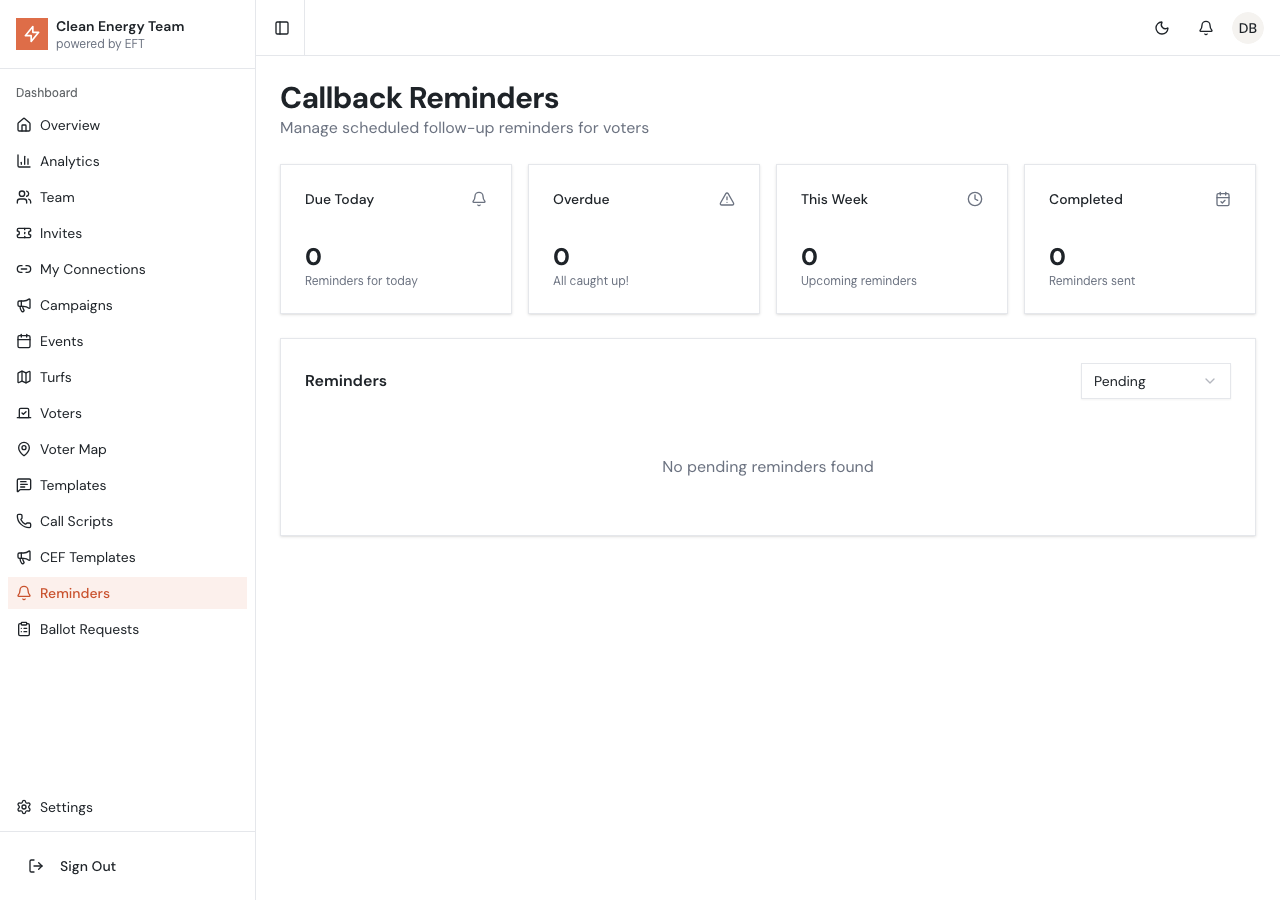
Section titled “Overview”The Callback Reminders page displays all scheduled follow-up reminders. When canvassers mark a voter as “Callback Requested” and set a reminder time, those reminders appear here for tracking and management.
Reminder Statistics
Section titled “Reminder Statistics”The top of the page shows key metrics:
| Stat | Description |
|---|---|
| Due Today | Reminders scheduled for today |
| Overdue | Reminders past their scheduled time |
| This Week | Reminders coming up in the next 7 days |
| Completed | Reminders that have been marked as sent |
Reminder Table
Section titled “Reminder Table”The reminders table displays:
- Voter - Name and partial address of the voter
- Phone - Voter’s phone number for callback
- Reminder Time - Scheduled callback date/time
- Created By - Which canvasser set the reminder
- Status - Pending, Due, Overdue, or Completed
Sorting
Section titled “Sorting”Click column headers to sort by:
- Reminder time (default: ascending)
- Voter name
- Created by
- Status
Reminder Statuses
Section titled “Reminder Statuses”Pending
Section titled “Pending”Future reminders not yet due. These will become “Due” when their scheduled time arrives.
Reminders scheduled for today that haven’t been completed yet. These need attention.
Overdue
Section titled “Overdue”Reminders past their scheduled time that haven’t been marked complete. These should be prioritized.
Completed
Section titled “Completed”Reminders marked as sent/completed. They remain in the list for record-keeping.
Managing Reminders
Section titled “Managing Reminders”Viewing Voter Details
Section titled “Viewing Voter Details”Click the View button on any reminder row to:
- Open the voter’s full detail page
- Review contact history
- Make the callback
- Record the contact result
Marking as Complete
Section titled “Marking as Complete”After making the callback:
- Record the contact result on the voter detail page
- The reminder can be marked as completed
Alternatively, complete directly from the reminders table using the checkbox or action menu.
Filtering Reminders
Section titled “Filtering Reminders”Use filters to focus on specific reminders:
- Status - Show only pending, due, overdue, or completed
- User - Filter by which canvasser created the reminder
- Date Range - Show reminders for specific dates
Dashboard Integration
Section titled “Dashboard Integration”The Dashboard home page also shows a Callback Reminders panel with:
- Count of overdue reminders
- Count of reminders due today
- List of upcoming reminders for quick reference
- “View All” link to this full page
Reminder Workflow
Section titled “Reminder Workflow”How Reminders Are Created
Section titled “How Reminders Are Created”- Canvasser contacts a voter
- Marks result as “Callback Requested”
- Sets a date/time for the callback
- Reminder is created in the system
Making the Callback
Section titled “Making the Callback”- Check Reminders page for due/overdue items
- Click View to open voter details
- Use Quick Actions to call the voter
- Record the new canvass result
- Mark reminder as complete
Recording Results
Section titled “Recording Results”After the callback, update the voter record with:
- New canvass result (Supportive, Opposed, etc.)
- Notes from the conversation
- Any action items
Best Practices
Section titled “Best Practices”Daily Review
Section titled “Daily Review”- Check the Reminders page at the start of each day
- Handle overdue reminders first
- Schedule callbacks during appropriate hours
Reminder Timing
Section titled “Reminder Timing”- Set reminders for convenient callback times
- Consider voter preferences mentioned in notes
- Allow reasonable time for callbacks
Follow-Through
Section titled “Follow-Through”- Always attempt callbacks as scheduled
- If unreachable, set a new reminder or leave voicemail
- Update voter notes with callback attempts
Troubleshooting
Section titled “Troubleshooting”Reminder Not Appearing
Section titled “Reminder Not Appearing”If a callback reminder doesn’t show:
- Verify the canvasser set a reminder time (not just result)
- Check the date range filter
- Refresh the page
Overdue Reminders Accumulating
Section titled “Overdue Reminders Accumulating”If overdue count keeps growing:
- Review team callback practices
- Ensure canvassers have access to reminders
- Consider redistributing reminder assignments
- Address any systematic issues
Wrong Reminder Time
Section titled “Wrong Reminder Time”If a reminder shows the wrong time:
- Delete the existing reminder (via voter detail page)
- Create a new reminder with correct time
- Check timezone settings if times seem shifted