
Invite Codes
Overview
Section titled “Overview”Invite codes allow new volunteers to sign up for the SRP Canvass app without manual approval. When someone uses a valid invite code, they’re automatically approved as a canvasser with any pre-configured settings.
Accessing Invite Codes
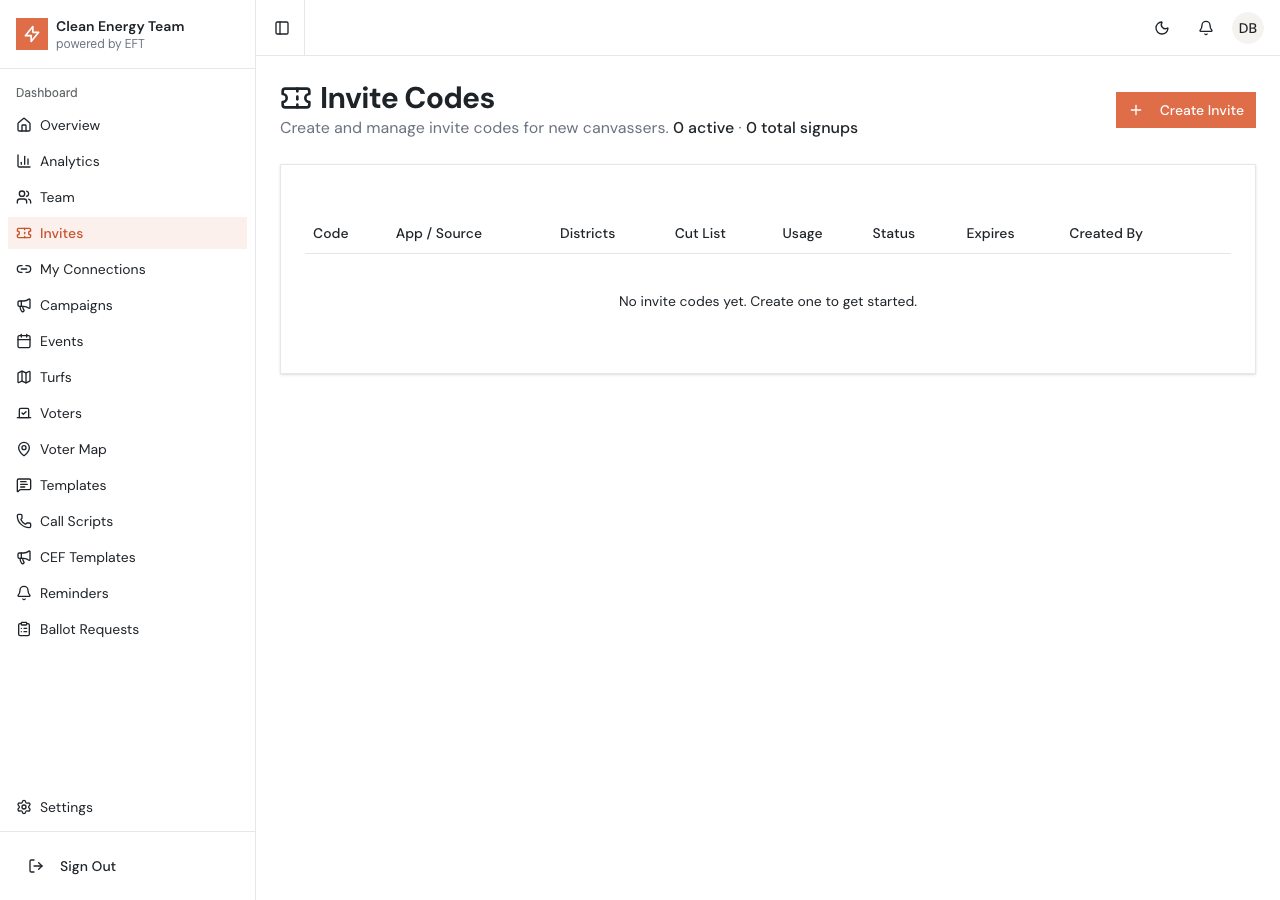
Section titled “Accessing Invite Codes”Click Invite Codes (or the ticket icon) in the sidebar. The page shows:
- Number of active invite codes
- Total signups from all codes
- List of all invite codes
Creating an Invite Code
Section titled “Creating an Invite Code”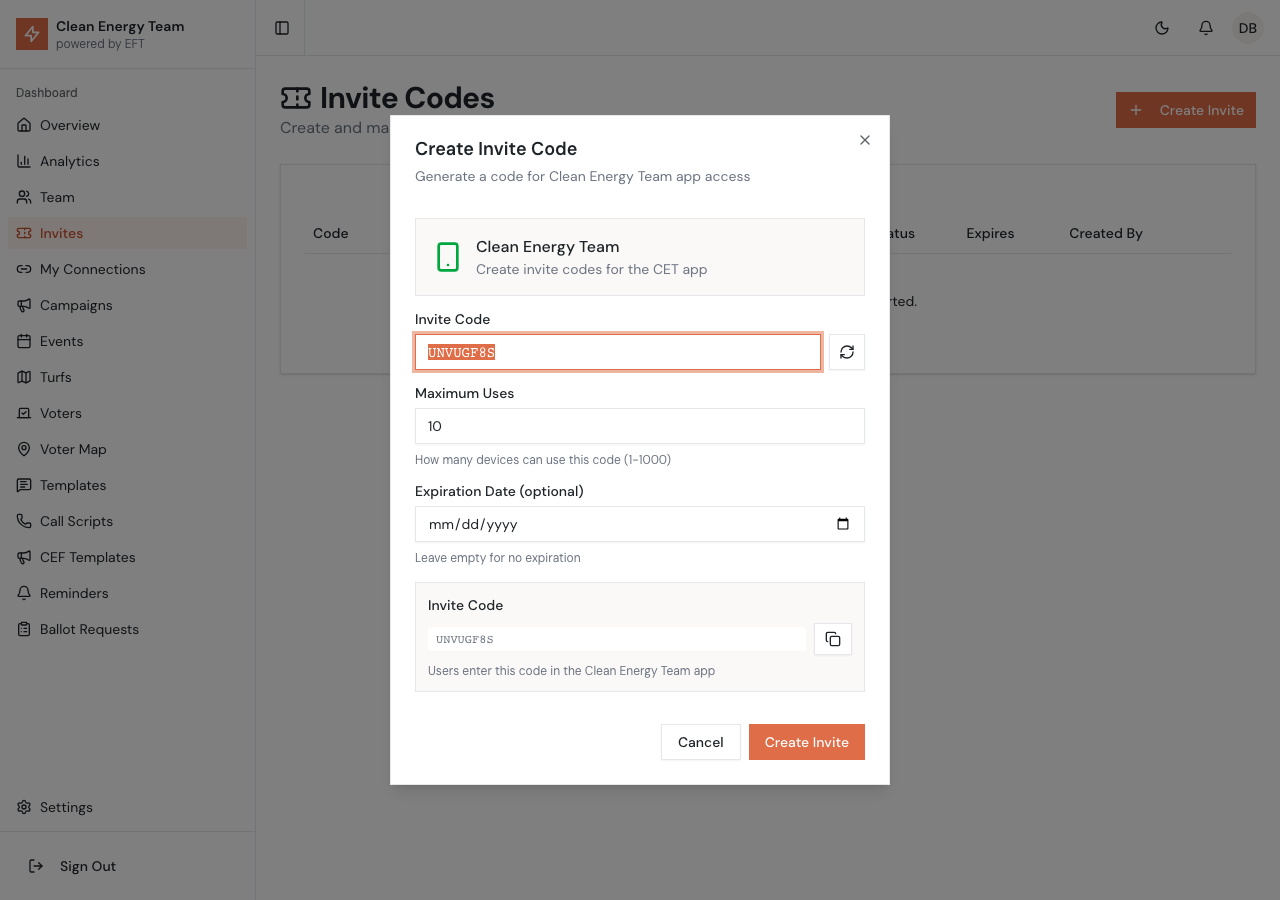
- Click Create Invite in the top right
- Configure the invite:
| Field | Description |
|---|---|
| Code | Unique code (auto-generated or custom) |
| App Type | Canvass (full app) or CEF (Clean Energy Friends) |
| Districts | Which districts to assign new users |
| Turf | Optionally pre-assign to a turf |
| Max Uses | How many times the code can be used (1-1000) |
| Expires At | Optional expiration date |
- Click Create
Code Format
Section titled “Code Format”- Auto-generated codes are 8 random characters
- Custom codes can be memorable phrases (e.g., “VOLUNTEER2024”)
- Codes are case-insensitive
Sharing Invite Codes
Section titled “Sharing Invite Codes”Every invite code automatically gets a trackable short link and QR code you can share.
QR Codes
Section titled “QR Codes”Click the QR code button next to any invite to open the QR dialog:

From here you can:
- Download the QR code as a PNG image for printing on flyers, signs, or business cards
- Copy the trackable link to paste in texts, emails, or social media
Trackable Links
Section titled “Trackable Links”Each invite gets a short, trackable URL:
qr.energyfreedom.team/yourcodeWhen someone clicks this link, the system tracks the click before redirecting them to the app download page with the invite code pre-filled.
Where Links Go
Section titled “Where Links Go”| App Type | Link Destination |
|---|---|
| Canvass | Account creation page (join.energyfreedom.team/join/CODE) |
| CEF | App download page with code displayed (energyfreedom.team/cef-app?code=CODE) |
App Types
Section titled “App Types”Canvass Invites
Section titled “Canvass Invites”- Full SRP Canvass app access
- Can only be created by Admins and Super Admins
- Includes all canvassing features
CEF Invites
Section titled “CEF Invites”- Clean Energy Friends app access
- Can be created by Team Leads and Canvassers too
- Simplified app for casual volunteers
Pre-Assignment Options
Section titled “Pre-Assignment Options”District Assignment
Section titled “District Assignment”When you specify districts, new users are automatically assigned to those districts. They’ll only see voters in their assigned districts.
Turf Assignment
Section titled “Turf Assignment”Optionally assign new users to a specific turf:
- They’ll see only voters in that turf
- Great for event-based signups where you want focused territories
- Users can be assigned to additional turfs later
Managing Invite Codes
Section titled “Managing Invite Codes”Invite Code Table
Section titled “Invite Code Table”The table shows all invite codes with:
- Code - The invite code string
- App Type - Canvass or CEF
- Districts - Assigned districts
- Uses - Current uses / max uses
- Status - Active, Inactive, or Expired
- Created - Creation date
Editing Codes
Section titled “Editing Codes”- Click the menu icon on the code row
- Select Edit
- Modify settings
- Click Save
You can change:
- Max uses
- Expiration date
- Districts and turf
- Active status
You cannot change:
- The code itself
- App type
Enabling/Disabling Codes
Section titled “Enabling/Disabling Codes”Toggle codes on or off:
- Click the menu icon
- Select Enable or Disable
Disabled codes reject new signups but preserve usage history.
Deleting Codes
Section titled “Deleting Codes”- Click the menu icon
- Select Delete
- Confirm deletion
Usage Tracking
Section titled “Usage Tracking”View Who Signed Up
Section titled “View Who Signed Up”See which users signed up with each code:
- Click the invite code row to expand
- View list of users who used this code
- See signup dates and user status
Usage Limits
Section titled “Usage Limits”When a code reaches its max uses:
- New signups are rejected
- Code shows “Limit Reached” status
- Increase max uses to allow more signups
Expiration
Section titled “Expiration”Codes with expiration dates automatically become invalid after that date:
- Expired codes show “Expired” status
- Extend by editing the expiration date
- Remove expiration for permanent codes
Permission Levels
Section titled “Permission Levels”Different roles have different invite code permissions:
| Role | Canvass Codes | CEF Codes |
|---|---|---|
| Super Admin | Yes | Yes |
| Admin | Yes | Yes |
| Team Lead | No | Yes |
| Canvasser | No | Yes |
Signup Flow
Section titled “Signup Flow”When someone uses an invite code:
- They visit
energyfreedom.team/join/CODE - Code is validated (active, not expired, uses remaining)
- They complete the signup form (name, email, password)
- Account is created with:
- Role: Canvasser
- Assigned districts from invite
- Assigned turf (if specified)
- They’re redirected to app download instructions
Best Practices
Section titled “Best Practices”Event Signups
Section titled “Event Signups”Create unique codes for each event:
- Easy tracking of where volunteers come from
- Set max uses based on expected attendance
- Pre-assign to event-specific turf
Code Naming
Section titled “Code Naming”Use descriptive custom codes:
DOOR2024for door knocking eventsD6RALLYfor District 6 rallyPHONEBANKfor phone banking sessions
Security
Section titled “Security”- Don’t share codes publicly for extended periods
- Set reasonable max uses
- Use expiration dates for temporary campaigns
- Disable unused codes promptly
Troubleshooting
Section titled “Troubleshooting”Code Not Working
Section titled “Code Not Working”If volunteers can’t sign up:
- Check if code is active (not disabled)
- Verify code hasn’t expired
- Confirm usage limit not reached
- Test the exact URL they’re using
- Check for typos in code
Wrong App Type
Section titled “Wrong App Type”If someone signed up for the wrong app:
- They can download either app with their account
- To change their access, edit their role in Team Management
- Contact them with correct app download link
Quick Start: Sharing the Clean Energy Friends App
Section titled “Quick Start: Sharing the Clean Energy Friends App”This section is for anyone who wants to invite friends and family to join Clean Energy Friends—no technical knowledge required!
What You Need to Know
Section titled “What You Need to Know”Invite codes are special passwords that let new people join the Clean Energy Friends app. When you create one, you get a QR code and link to share.
Step-by-Step: Create and Share an Invite
Section titled “Step-by-Step: Create and Share an Invite”1. Go to the Invites Page
Section titled “1. Go to the Invites Page”Visit admin.energyfreedom.team/admin/invites and log in.
2. Click “Create Invite”
Section titled “2. Click “Create Invite””A form will appear with a few options:
| Setting | What to Enter |
|---|---|
| Invite Code | Keep the random code or type something memorable like BOOKCLUB |
| Maximum Uses | How many people can use this code (try 10 for small groups) |
| Expiration | Leave blank unless you want the code to stop working on a specific date |
3. Click “Create Invite”
Section titled “3. Click “Create Invite””Your code is ready!
4. Share It
Section titled “4. Share It”Click the QR code button next to your new invite. You can:
- Download the QR to print or show on your phone
- Copy the link to text or email to friends
What Happens When Someone Uses Your Link?
Section titled “What Happens When Someone Uses Your Link?”- They click your link → Opens the app download page
- They install the app → Following iPhone or Android instructions
- They see the invite code → Displayed at the bottom of the page
- They enter the code in the app → Activates their account
- You see the usage → The “Uses” column goes up by 1
Tips for Success
Section titled “Tips for Success”- Create different codes for different groups — Makes it easy to see which friends signed up
- Use memorable codes —
YOGA2024is easier to remember thanX7K9M2QP - Turn off old codes — Click the toggle to disable codes you’re not using anymore
Can multiple people use the same code? Yes! Set “Maximum Uses” to however many people you want to invite.
What if someone loses the code? They can click the same link again—the code will still be shown on the page.
What if my code runs out of uses? Just create a new one. There’s no limit!
Need Help?
Section titled “Need Help?”If you have trouble, reach out to your team lead or email support@energyfreedom.team.