
Campaigns
Overview
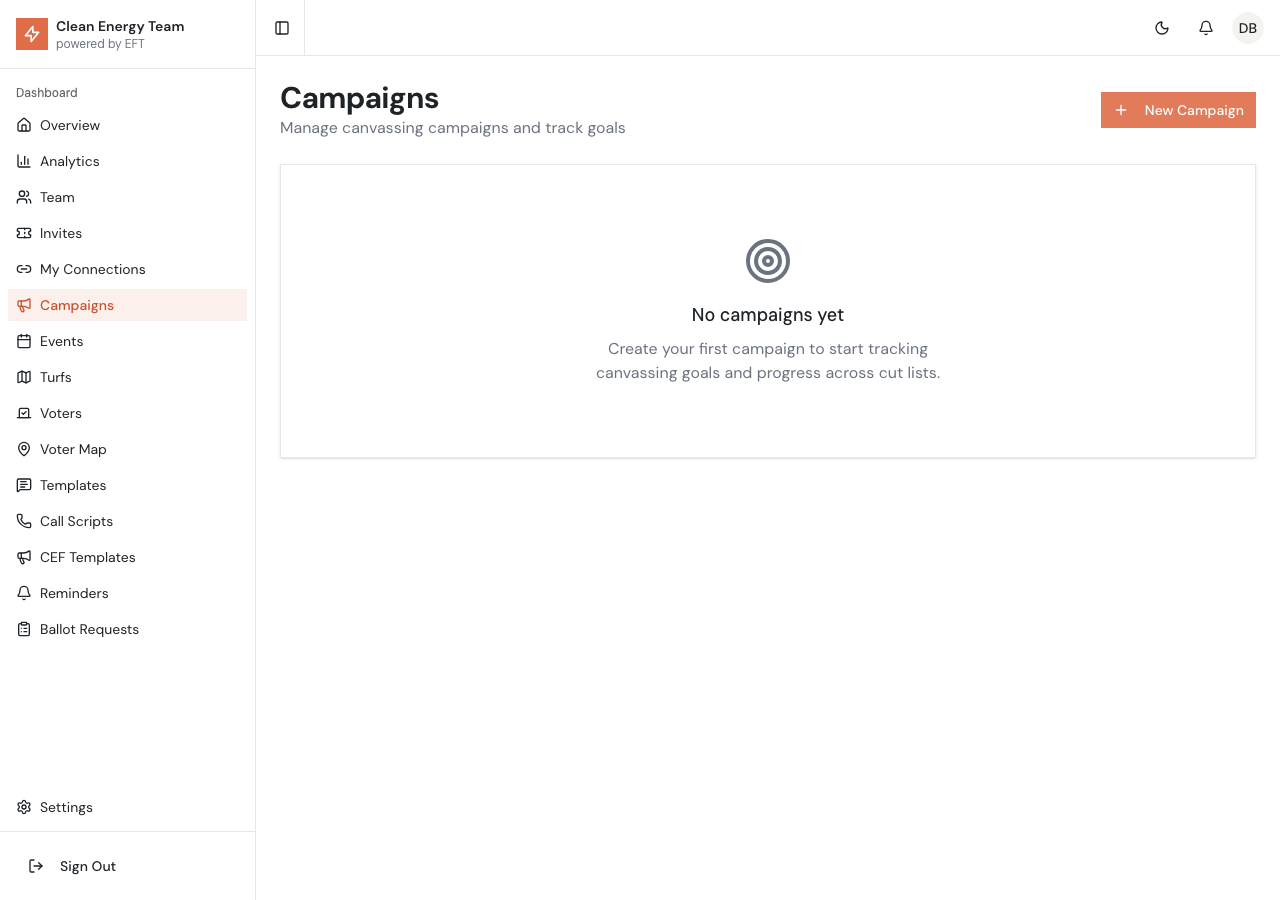
Section titled “Overview”The Campaigns page lets you organize your canvassing efforts into distinct campaigns with specific goals, timeframes, and assigned teams. Track progress toward your targets and compare performance across different campaign initiatives.
Creating a Campaign
Section titled “Creating a Campaign”-
Click New Campaign in the top right
-
Fill in the campaign details:
- Name - Descriptive campaign name (e.g., “District 6 Phone Bank”)
- Description - Goals and context for the campaign
- Start Date - When the campaign begins
- End Date - Target completion date
- Contact Goal - Number of voter contacts to achieve
- Turf - Optionally link to a specific turf
-
Click Create to save
Campaign Fields
Section titled “Campaign Fields”| Field | Description |
|---|---|
| Name | Campaign identifier visible to team |
| Description | Details about campaign objectives |
| Start Date | Campaign start date |
| End Date | Campaign end date |
| Contact Goal | Target number of contacts |
| Turf | Associated turf (optional) |
| Status | Active, Completed, or Paused |
Campaign Statistics
Section titled “Campaign Statistics”Each campaign displays real-time statistics:
- Total Contacts - Number of contacts made
- Goal Progress - Percentage toward contact goal
- Positive Rate - Percentage of supportive responses
- Days Remaining - Time until campaign end date
Managing Campaigns
Section titled “Managing Campaigns”Editing a Campaign
Section titled “Editing a Campaign”- Click on the campaign row or the edit icon
- Modify any campaign fields
- Click Save to update
Campaign Actions
Section titled “Campaign Actions”From the campaign row menu:
- Edit - Modify campaign details
- View Progress - See detailed statistics
- Delete - Remove the campaign (contacts are preserved)
Campaign Progress
Section titled “Campaign Progress”Progress Bar
Section titled “Progress Bar”Each campaign shows a visual progress bar indicating:
- Current contacts vs. goal
- Color coding (green for on-track, yellow for behind, red for significantly behind)
Timeline View
Section titled “Timeline View”Track daily contact volume to see:
- Days with high activity
- Trends over campaign duration
- Comparison to goal pace
Linking Turfs
Section titled “Linking Turfs”Associate campaigns with turfs to:
- Focus canvassers on specific geographic areas
- Track progress for particular voter segments
- Coordinate multiple campaigns in different areas
When a campaign is linked to a turf, only contacts with voters in that turf count toward campaign goals.
Campaign Lifecycle
Section titled “Campaign Lifecycle”Active Campaigns
Section titled “Active Campaigns”Current campaigns accepting new contacts. Team members see active campaigns in their mobile app.
Completed Campaigns
Section titled “Completed Campaigns”Campaigns past their end date or manually marked complete. Statistics are preserved for reporting.
Paused Campaigns
Section titled “Paused Campaigns”Temporarily suspended campaigns. Can be reactivated when ready to resume.
Reporting
Section titled “Reporting”Campaign Summary
Section titled “Campaign Summary”View aggregate statistics across all campaigns:
- Total contacts across all campaigns
- Overall goal completion rate
- Top performing campaigns
- Campaigns needing attention
Export Campaign Data
Section titled “Export Campaign Data”Export campaign results for external reporting:
- Select the campaign
- Click Export
- Choose format (CSV)
- Include fields: dates, contacts, results, team activity
Best Practices
Section titled “Best Practices”Goal Setting
Section titled “Goal Setting”- Set realistic, achievable goals based on team size
- Break large goals into smaller campaign phases
- Account for weekends and holidays in timeline
Campaign Focus
Section titled “Campaign Focus”- Create separate campaigns for different initiatives
- Use descriptive names for easy identification
- Link to appropriate turfs for geographic focus
Progress Monitoring
Section titled “Progress Monitoring”- Check campaign progress regularly
- Adjust goals or timelines if needed
- Celebrate milestones to motivate team
Troubleshooting
Section titled “Troubleshooting”Campaign Not Showing Progress
Section titled “Campaign Not Showing Progress”If a campaign isn’t counting contacts:
- Verify the campaign dates include today
- Check if a turf is linked and contacts are outside it
- Ensure canvassers are assigned to the campaign
Duplicate Campaigns
Section titled “Duplicate Campaigns”If you accidentally created duplicates:
- Determine which campaign to keep
- Note any contacts in the duplicate
- Delete the duplicate campaign
- Verify contacts appear under the correct campaign